


Peoria Police Department Pack
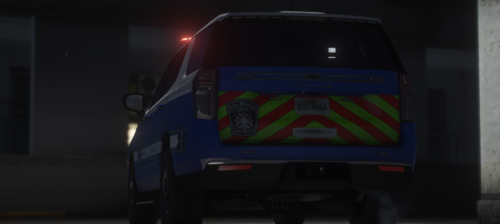
Comes with Five skins,
- 2016 Impala
- 2012 Tahoe
- 2016 Explorer
- 2016 Taurus Unmarked Skin
- 2016 Express Skin
I modeled the Impala, Express, Explorer, and Tahoe skin's off of Osc4r's LSPD Mega Pack. You can find it below.
I modeled the unmarked Taurus skin off of Vegas725's Philadelphia Police Department 2PA Pack. You can find it below.
Lastly, check out Trooper Keaton's Illinois State Police Pack which in my opinion has some of the most accurate Illinois State Police Cruisers you can find on LSPDFR.com. You can find that below.
What might come in the future for my Peoria Police Pack?
- 2018 Tahoe
- Tahoe K9 skins
What's to come in the future for sure?
- I will be uploading a Pekin Illinois pack, a pack which will include fire and EMS vehicles, and a pack which will include license plates, taxi and bus skins. In the meantime, keep up to date by following my gallery which I will post pictures of Vehicles as they are completed. You can find that below.
Please do not reupload my skins on other sites. Thanks.
Edited by Mikeyretro99





![Grapeseed Police Department EUP [Replace]](http://s3-screenshots.int-cdn.lcpdfrusercontent.com/resize/500/-/monthly_2026_04/mainthumbnail.thumb.png.70cc09e736714cc9fbd2cbea7f4fd4f4.png)


Recommended Comments
Create an account or sign in to comment