





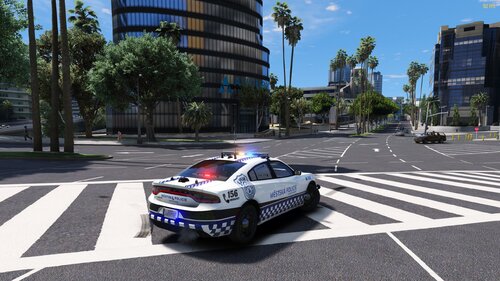
Starbuck, Minnesota Police Department texture pack
Vehicle Model I use in game:
Federal Signal LSSD Pack [ELS] --
*Highly recommend this model*
Installation Intructions:
In Open IV, navigate to GTA V/mods/update/x64/dlcpacks/MODDING/dlc.rpf/x64/levels/gta5/vehicles/vehicles.rpf.
Find the texture file used that corresponds to the 18 Charger you have downloaded, e.g.) police3, and open the .ytd in "edit mode."
Rename the skin to match the one in the .ytd file, e.g.) charger_sign_1 to charger_sign_2,3,4,etc...
Save file and open your game
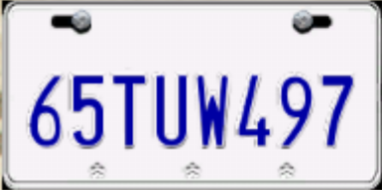
To install the License plate, open the .ytd file and find the texture "plate01" and "plate01_n". Drag and drop the included textures or click "replace".





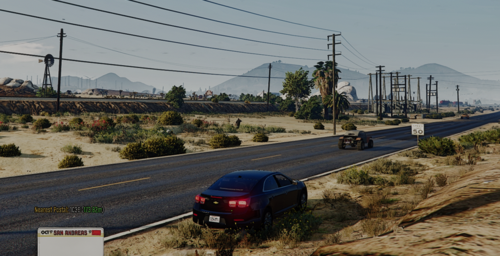
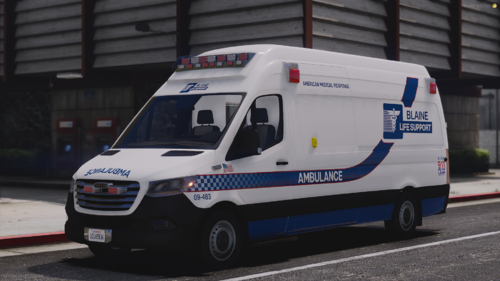
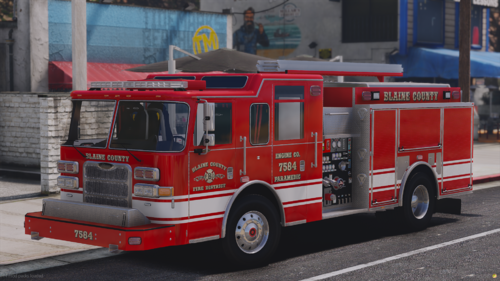
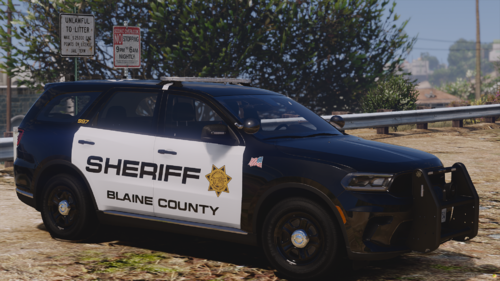

![Arkansas State Police [4K]](http://s3-screenshots.int-cdn.lcpdfrusercontent.com/resize/500/-/monthly_2026_05/Screenshot_2716.thumb.png.206c8db8b3e9230c2692e6b5b347b435.png)

![Slovenia Emergency Service Pack - 10 Vehicle - [REPLACE] [ELS] [REFLECTIVE]](http://s3-screenshots.int-cdn.lcpdfrusercontent.com/resize/500/-/monthly_2026_05/profilbild.thumb.png.38515307375bb5cf424e5e284a989253.png)

Recommended Comments
Create an account or sign in to comment