Skip to content
View in the app

A better way to browse. Learn more.

LCPDFR.com

A full-screen app on your home screen with push notifications, badges and more.

To install this app on iOS and iPadOS
  1. Tap the Share icon in Safari
  2. Scroll the menu and tap Add to Home Screen.
  3. Tap Add in the top-right corner.
To install this app on Android
  1. Tap the 3-dot menu (⋮) in the top-right corner of the browser.
  2. Tap Add to Home screen or Install app.
  3. Confirm by tapping Install.

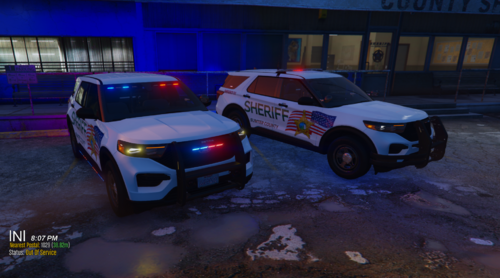
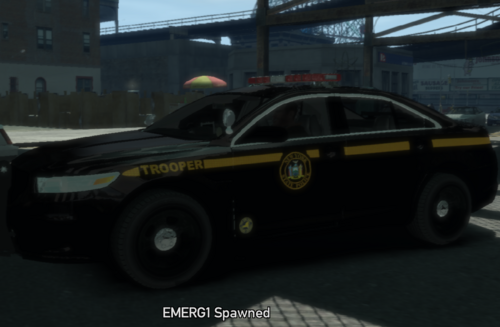
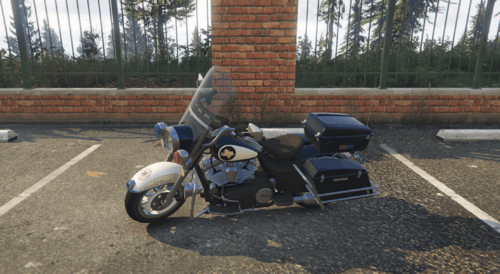
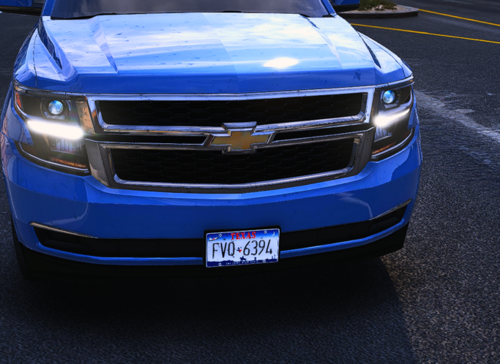
BCSO 2018 charger Texture 1.0.0

(0 reviews)

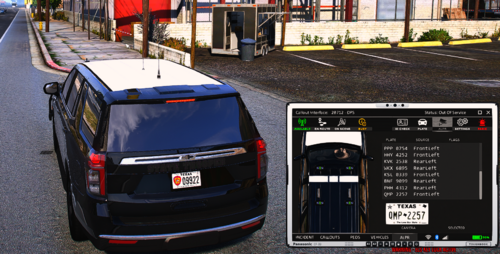
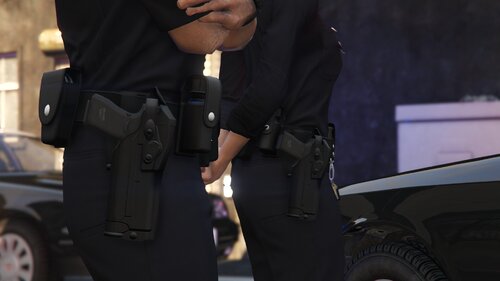
3 Screenshots

get the charger here from Ripple:

IF YOU FELLOW DEVS COULD GIVE A BROTHER A HAND AND HELP ME WITH GETTING MY SCREENSHOTS TO BE AMAZING I WOULD LOVE YOU PLS)if you guys like this I will make a mega pack but there might be some things that i could change up idk lmk please im trying to get better at this..

User Feedback

Recommended Comments

Vampyre

Members

@Isaac 121 Best way to take screenshots is use the GTA V clipping system to make a clip then in the game menu go to Director Mode to edit the clip. In Director Mode you can move the camera around using Free Mode to get the best angle and can apply filters to make it look better or different. Once you have that perfect angle press H to hide the HUD and snap your picture (F12 default on Steam).


Here's a video that explains it if you need one: https://www.youtube.com/watch?v=t-e_4xTTZtQ

Isaac 121

Members Author

17 minutes ago, Vampyre said:

@Isaac 121 Best way to take screenshots is use the GTA V clipping system to make a clip then in the game menu go to Director Mode to edit the clip. In Director Mode you can move the camera around using Free Mode to get the best angle and can apply filters to make it look better or different. Once you have that perfect angle press H to hide the HUD and snap your picture (F12 default on Steam).


Here's a video that explains it if you need one: https://www.youtube.com/watch?v=t-e_4xTTZtQ

Yep I’ve tried all that but when I get them through steam the quality is so bad and choppy:(

Vampyre

Members

1 minute ago, Isaac 121 said:

Yep I’ve tried all that but when I get them through steam the quality is so bad and choppy:(

You probably have your settings on low-medium, try bumping visual settings as high as possible. Lower any settings to do with distance like distance scaling in advanced so you can get the best possible close range visuals. Also if you've reduced your game resolution lower than what your monitor can handle make sure to kick that up as high as you can as well so you end up with a higher resolution screenshot.


If all that fails and your computer just can't handle taking high quality screenshots just find someone on here to team up with, many people will be happy to take screenshots for you.

Create an account or sign in to comment

Account

Navigation

Search

Search

Configure browser push notifications

Chrome (Android)
  1. Tap the lock icon next to the address bar.
  2. Tap Permissions → Notifications.
  3. Adjust your preference.
Chrome (Desktop)
  1. Click the padlock icon in the address bar.
  2. Select Site settings.
  3. Find Notifications and adjust your preference.