




PT-BR
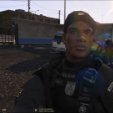
SKIN BPCHQ RJ PMERJ GTA V
Instalação :
1ª local para instalação
C:\Program Files\Rockstar Games\Grand Theft Auto V\mods\update\x64\dlcpacks\patchday3ng\dlc.rpf\x64\models\cdimages\patchday3ng.rpf\
2ª local para instalção :
C:\Program Files\Rockstar Games\Grand Theft Auto V\mods\x64e.rpf\models\cdimages\componentpeds_s_m_m.rpf\
caso forem fazer vídeos,postar em algum outro site ou blogger,postar prints por favor deixem os créditos
é importante para o trabalho do moder.
Créditos pela skin : VNLAE & MORRICE
Créditos textura BPCHQ RJ : GTAIV SOUZA
EN
SKIN BPCHQ RJ PMERJ GTA V
Installation :
1st place for installation
😄 \ Program Files \ Rockstar Games \ Grand Theft Auto V \ mods \ update \ x64 \ dlcpacks \ patchday3ng \ dlc.rpf \ x64 \ models \ cdimages \ patchday3ng.rpf \
2nd place to install:
😄 \ Program Files \ Rockstar Games \ Grand Theft Auto V \ mods \ x64e.rpf \ models \ cdimages \ componentpeds_s_m_m.rpf \
if they are making videos, post to some other website or blogger, post prints please leave credits
is important to the work of the moder.
Credits for the skin: VNLAE & MORRICE
Credits texture BPCHQ RJ: GTAIV SOUZA
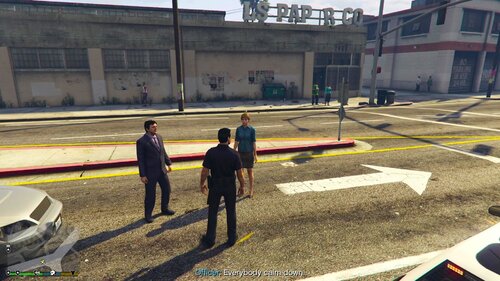
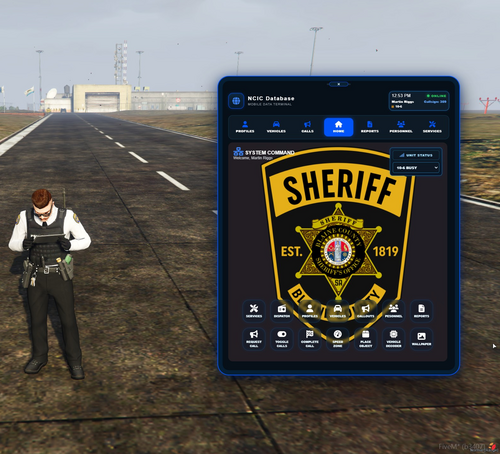
8 Screenshots
GTAIV SOUZA,MORRICE,VNLAE




![Arkansas State Police [4K]](http://s3-screenshots.int-cdn.lcpdfrusercontent.com/resize/500/-/monthly_2026_05/Screenshot_2747.thumb.png.f0b9ad12f59a7855161f08525b0012b6.png)


Recommended Comments
Create an account or sign in to comment