


Minnetonka MN Police Dept. Pack
These skins fit the following authors models:
- CVPI - THeHurks
- FPIS - OfficerUnderwood
- FPIU - TheHurks
***DISCLAIMER****
-I am not associated with the police department name above
-DO NOT upload this skin to ANY site without my permission
-I am not responsible for game issues
-Backup your game
- PHD280 for the pictures found on his Flickr for references
- Minnetonka Police Department
- Minnetonka Police Department
![[ELS-Hybrid | DLC/Addon ] Low-Profile z71 Tahoes](http://s3-screenshots.int-cdn.lcpdfrusercontent.com/resize/500/-/monthly_2026_05/25_1(1).thumb.png.7bdf0066d86afe565fac5e2684baa3e8.png)


![[ELS][REPLACE] 2020 Skoda Octavia Městská policie Praha (New design)](http://s3-screenshots.int-cdn.lcpdfrusercontent.com/resize/500/-/monthly_2026_05/20260514222354_1.thumb.jpg.dedd1cd5cdf14716666af6abfa71508d.jpg)
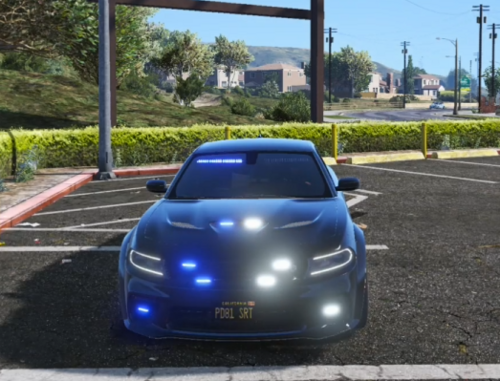

.thumb.png.a0f80464539c2dd42ee2519c1bda91f2.png)

![Generic Whelen 2023 F150 B/B [FiveM & Single Player]](http://s3-screenshots.int-cdn.lcpdfrusercontent.com/resize/500/-/monthly_2026_05/enb2026_5_13_15_23_48_06.thumb.png.ecbdfb941234f496e3fd959033f602d4.png)


Recommended Comments
Create an account or sign in to comment