Skip to content
View in the app

A better way to browse. Learn more.

LCPDFR.com

A full-screen app on your home screen with push notifications, badges and more.

To install this app on iOS and iPadOS
  1. Tap the Share icon in Safari
  2. Scroll the menu and tap Add to Home Screen.
  3. Tap Add in the top-right corner.
To install this app on Android
  1. Tap the 3-dot menu (⋮) in the top-right corner of the browser.
  2. Tap Add to Home screen or Install app.
  3. Confirm by tapping Install.

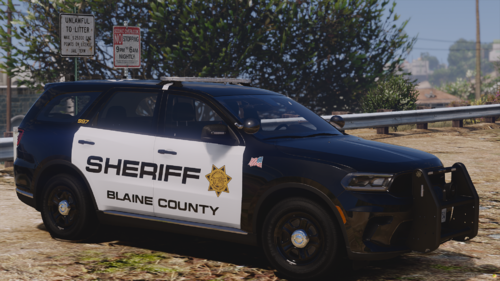
Texas Department of Public Safety Explorer Texture 1.0.0

(0 reviews)

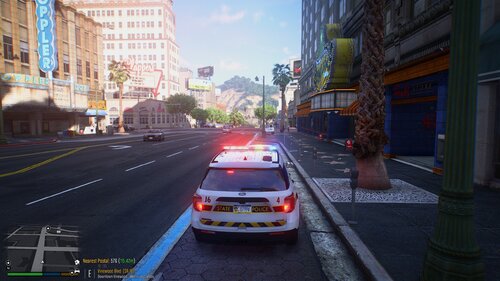
1 Screenshot

This is my first texture or even upload so if there are any problems i am very sorry but on my computer every thing works fine 


i am not offended if you see some thing wrong with this file just tell me 


                                UPDATE......

  • Added one file with both textures
  • Added only one file with the ream me and the texture 
  • Revised the skin to make it more realistic
  • Added photos in the version files with the textures that show the difference of the versions

20181019204344_1.jpg

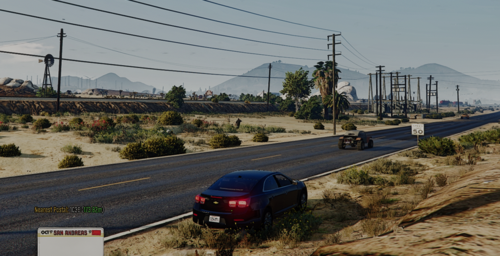
20181019204504_1.jpg

20181019204528_1.jpg

20181019204544_1.jpg

20181019204555_1.jpg

explorer pic.jpg

User Feedback

Recommended Comments

(edited)

**facepalm** isnt even properly centered 

also, flags are pointed wrong direction blue field faces towards the front of the vehicle 

image.thumb.png.aab20a6f9d4c1232570953b438120c30.png

Edited by Cowboy145

thegamingboy

Members Author

i like it a lot wow nice

oh on my explorer


oh on my explorer

also sorry that there is two files i dont know why though cause i made a folder


(edited)

3 hours ago, thegamingboy said:

i dont want a k9 unit


20181020034640_1.thumb.jpg.d5ec49c5e4b0c82adee03db083665ee4.jpg

this better


I'm just saying for it to be proper it wasnt centered also, with the flag the field points to the front, but yes that is proper, and my K9 truck was the only skin I had that wasnt installed on my server and I had in open IV

Edited by Cowboy145

Create an account or sign in to comment

Account

Navigation

Search

Search

Configure browser push notifications

Chrome (Android)
  1. Tap the lock icon next to the address bar.
  2. Tap Permissions → Notifications.
  3. Adjust your preference.
Chrome (Desktop)
  1. Click the padlock icon in the address bar.
  2. Select Site settings.
  3. Find Notifications and adjust your preference.