


Blaine County Sheriff's Office Mini-Pack!
(Based off of Broward County Sheriff Department.)
INFORMATION:
STATUS: Uneditable/Locked
Credits: Me, Badge
Version: v1.0.0
Special Features: It is my first Mini-Pack that I'll be updating and I hope you enjoy 😉 (v1)
TUTORIAL ON HOW TO INSTALL:
NOTE:
Please read the License.txt and README.txt that come with the download located in the `Docs` section. Thanks!
NOTICE:
This is one of my first texture(s). Please take it easy on the bad reviews 😉. Thanks for any feedback and if I should edit/add/change something please be sure to let me know in the comments, and review it for other members under REVIEW section!
Me, Myself, and Me!
BADGE: https://goo.gl/HpT5uE
BADGE: https://goo.gl/HpT5uE


.thumb.png.a0f80464539c2dd42ee2519c1bda91f2.png)

![San Andreas State Parks 2018 FPIS [HYBRID]](http://s3-screenshots.int-cdn.lcpdfrusercontent.com/resize/500/-/monthly_2026_05/GrandTheftAutoV-01.thumb.png.410c39ac6a12133975e1fe0f636fc1f4.png)

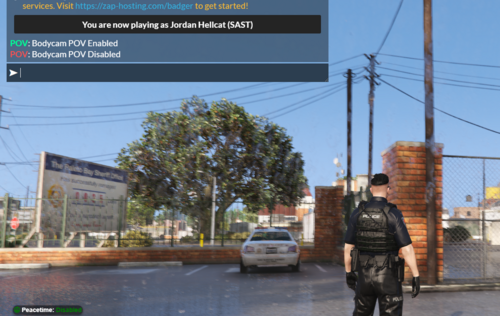

![Los Santos County Sheriff's Office EUP Pack [FiveM & LSPDFR Ready]](http://s3-screenshots.int-cdn.lcpdfrusercontent.com/resize/500/-/monthly_2026_05/Screenshot(362).thumb.png.1c4ef83c5ec20d796ff93960de60c517.png)


![[NON-ELS] New Zealand Police Custody Volkswagen Crafter](http://s3-screenshots.int-cdn.lcpdfrusercontent.com/resize/500/-/monthly_2026_05/Screenshot2026-05-11213417.thumb.png.5f9a38c856a4985936c95bf720eb3cfc.png)


![UrbanPlus: World Reimagined [SP/FiveM/RageMP]](http://s3-screenshots.int-cdn.lcpdfrusercontent.com/resize/500/-/monthly_2026_02/UrbanPlus.thumb.png.1f880ad3aba8d1ef3de85efd47dfae6f.png)
Recommended Comments
Create an account or sign in to comment