





Thank you for your download it means a lot. I am new to creating skins so please bear with me.
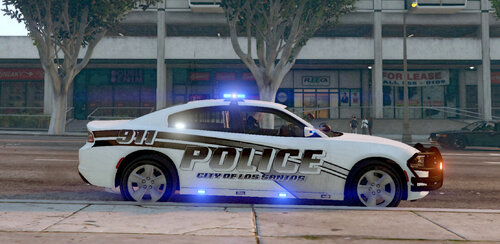
I'm not sure if I can redistibute the cars I used to make the skins for so I have not included
them but I wll however provide the links. Most of the packs I used came with all the files
you to need to make cars work perfectly. Please make sure you guys subscribe to the youtube channel
as I will be previewing skins and also taking requests on there.
For the state trooper cars I used this pack from Gump- https://www.lcpdfr.com/files/file/20108-2018-sahp-dodge-charger-pack/
I also used a Slicktop 2018 Dodge Charger for the Rapid Response State Police by Panoszaf- https://www.lcpdfr.com/files/file/19402-2018-slicktop-dodge-charger-els-compatible-with-holdmygun/
For the Blaine County Sheriff I used this back from kryptonic- https://www.lcpdfr.com/files/file/19389-2018-dodge-charger-by-kryptonic-els-whelen-legacy/
For the LSPD FPIU I used this beautiful 2016 by FRGamer- https://www.lcpdfr.com/files/file/16389-els-2016-ford-police-interceptor-utility-w-hq-interior/
All cars come with instructions on how to install.
OPENIV is required for this.
if you've never changed liveries or skins before and you need help just hit me up on Youtube.
Don't forget to subcribe. LOOTCAMPWIN
https://www.youtube.com/channel/UC0daHSfqWDR0yQWk8nXdomw
Gump
Kryptonic
Pansozof

![[ELS-Hybrid | DLC/Addon ] Low-Profile z71 Tahoes](http://s3-screenshots.int-cdn.lcpdfrusercontent.com/monthly_2026_05/25_1(1).thumb.png.7bdf0066d86afe565fac5e2684baa3e8.png)




![[ELS][REPLACE] 2020 Skoda Octavia Městská policie Praha (New design)](http://s3-screenshots.int-cdn.lcpdfrusercontent.com/resize/500/-/monthly_2026_05/20260514222354_1.thumb.jpg.dedd1cd5cdf14716666af6abfa71508d.jpg)


.thumb.png.a0f80464539c2dd42ee2519c1bda91f2.png)

![Generic Whelen 2023 F150 B/B [FiveM & Single Player]](http://s3-screenshots.int-cdn.lcpdfrusercontent.com/monthly_2026_05/enb2026_5_13_15_23_48_06.thumb.png.ecbdfb941234f496e3fd959033f602d4.png)


Recommended Comments
Create an account or sign in to comment