Skip to content
View in the app

A better way to browse. Learn more.

LCPDFR.com

A full-screen app on your home screen with push notifications, badges and more.

To install this app on iOS and iPadOS
  1. Tap the Share icon in Safari
  2. Scroll the menu and tap Add to Home Screen.
  3. Tap Add in the top-right corner.
To install this app on Android
  1. Tap the 3-dot menu (⋮) in the top-right corner of the browser.
  2. Tap Add to Home screen or Install app.
  3. Confirm by tapping Install.

San Andreas State Police - Blue lights configuration 1.0.0

(0 reviews)

5 Screenshots

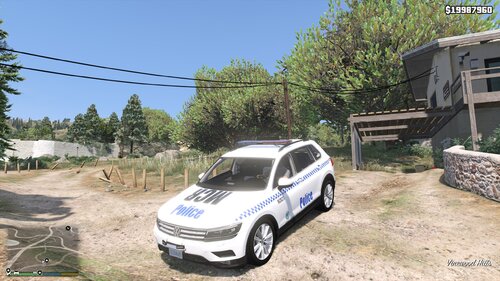
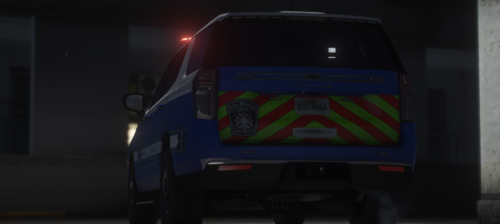
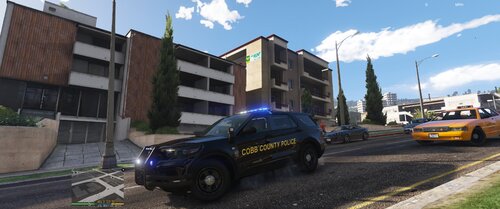
This is a simple mod to BradM's State Police Pack; I've changed the lights and ELS settings so that the lights are all blue on both the Tahoe (non K9) and the FPIS. 


Installation:

Simply open OpenIV, navigate to wherever you've installed the state police pack to (probably patchday15ng) and replace the current sheriff.ytd and/or sheriff2.ytd with mine. I've separated the two into folders, so if you want both, open both the Tahoe folder and the FPIS folder and copy both ytd's to patchday15ng. If you only want one or the other, select which one by opening its respective folder and using that one. Then, copy the ELS VCF(s) to the pack_default folder.


I've marked the file as a work in progress in case it is popular and people want me to change the other cars in the pack to have blue lights.


Enjoy!

User Feedback

Recommended Comments

wantedelf

Members

i'm pretty sure this pack has already been made into an all blue light pack by generalford1   I would check his work out on the 

visual/data page before doing any kind of blue light setup as he has made quite a few packs.  just a suggestion. I could be wrong.


                                                                                                                                                     Wantedelf

archangel2190

Members Author

2 hours ago, wantedelf said:

i'm pretty sure this pack has already been made into an all blue light pack by generalford1   I would check his work out on the 

visual/data page before doing any kind of blue light setup as he has made quite a few packs.  just a suggestion. I could be wrong.


                                                                                                                                                     Wantedelf

Hey there,


Looking at generalford1's work, I did find that he'd already done it. I was not aware of that haha, typically when I find a car I like that doesn't have a blue's option by default, I just edit it. I just figured I would upload these ones in particular.


Thanks for letting me know, though! I'm going to leave this up in case there are any differences with this one.


Cheers!

wantedelf

Members

Yeah he stays on top of the blue lights...when packs or models come out   i'm the same way all i use are blue

lights. so the first thing i do is edit them to have all blue when i download a new pack or model....


                                                                                                                                          Wanted

42 minutes ago, archangel2190 said:

Hey there,


Looking at generalford1's work, I did find that he'd already done it. I was not aware of that haha, typically when I find a car I like that doesn't have a blue's option by default, I just edit it. I just figured I would upload these ones in particular.


Thanks for letting me know, though! I'm going to leave this up in case there are any differences with this one.


Cheers!

Yeah he stays on top of the blue lights...when packs or models come out   i'm the same way all i use are blue

lights. so the first thing i do is edit them to have all blue when i download a new pack or model....


                                                                                                                                          Wanted

Create an account or sign in to comment

Account

Navigation

Search

Search

Configure browser push notifications

Chrome (Android)
  1. Tap the lock icon next to the address bar.
  2. Tap Permissions → Notifications.
  3. Adjust your preference.
Chrome (Desktop)
  1. Click the padlock icon in the address bar.
  2. Select Site settings.
  3. Find Notifications and adjust your preference.