





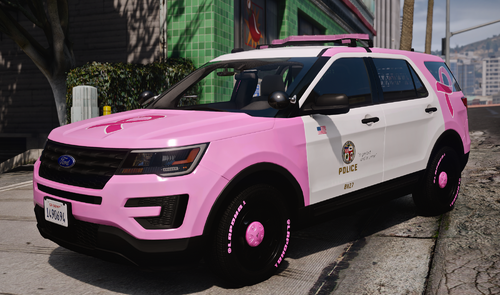
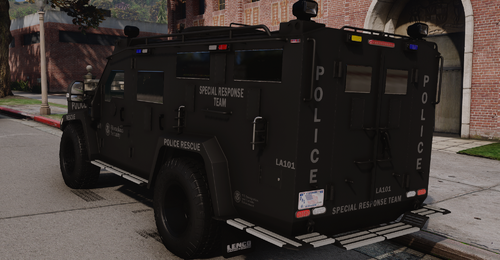
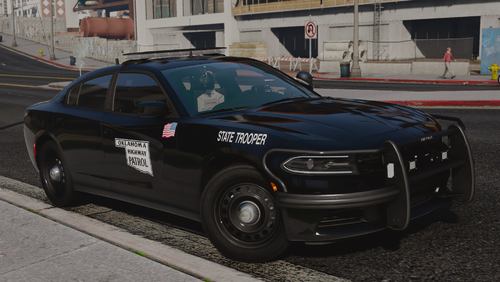
A skin i made because i was Bored, I hope you guys like it
I have no idea what this looks like in game please send em screen shot of any mistakes so i can fix them, thanks
Skin for this model
PLEASE LEAVE COMMENTS, AFTER USING IT RATE IT, PLEASE IT HELPS ME KNOW HOW U LIKE IT... SUGGESTIONS OR REQUESTS PM ME, I MAY SAY NO TO REQUESTS. (SCHEDULING IS SUBJECT TO CHANGE SO IF I SAY YES IT MAY NOT GET DONE FOR A WHILE)
DO NOT EDIT OR REPOST IN ANY WAY SHAPE OR FORM WITHOUT PERMISSION.
___________________________________________________________________________________________
Special thanks to Netman005 for thee screen shots
Bonehead
Netman005 for the screens
Netman005 for the screens
.thumb.png.9788e98db196594e6b6e34a34af7a94e.png)
![BCSO Durango (Robeson County Based) [LIVERY]](http://s3-screenshots.int-cdn.lcpdfrusercontent.com/resize/500/-/monthly_2026_07/2676230_8.thumb.jpg.27b37457462cee57a3ecd2b9e4609a0d.jpg)
![[ELS] [REPLACE] SASP 2021 Chevrolet Tahoe [KSP Based]](http://s3-screenshots.int-cdn.lcpdfrusercontent.com/resize/500/-/monthly_2026_07/Skrmbild2026-07-10211647.thumb.png.83d837d2e36808312ac1a58d77fc4520.png)
![[ELS] [REPLACE] Los Santos Police Dodge Durango [Hazel Park Michigan Based]](http://s3-screenshots.int-cdn.lcpdfrusercontent.com/resize/500/-/monthly_2026_07/Skrmbild2026-07-10170432.thumb.png.b1d339ae8c7429c248857448f2f089f9.png)




.thumb.png.4d59e30ff8b8385589769cf607a5e1aa.png)

Recommended Comments
Create an account or sign in to comment