Skip to content
View in the app

A better way to browse. Learn more.

LCPDFR.com

A full-screen app on your home screen with push notifications, badges and more.

To install this app on iOS and iPadOS
  1. Tap the Share icon in Safari
  2. Scroll the menu and tap Add to Home Screen.
  3. Tap Add in the top-right corner.
To install this app on Android
  1. Tap the 3-dot menu (⋮) in the top-right corner of the browser.
  2. Tap Add to Home screen or Install app.
  3. Confirm by tapping Install.

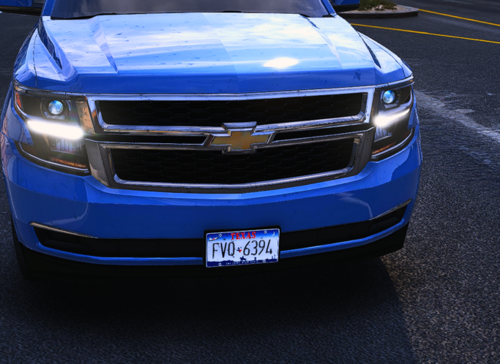
Chevrolet Impala - Unmarked (Updated) V1.1-AC

(3 reviews)

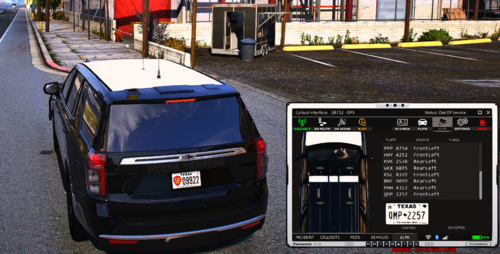
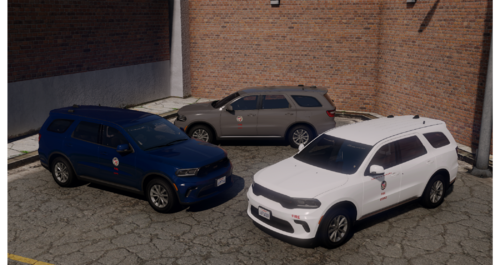
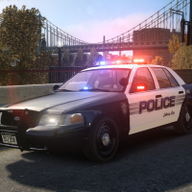
3 Screenshots

Installation:

Put the fbi.wft and fbi.wtd into your vehicles.img.

Credits:

- Model is Chevrolet Impala from Driver SF, modified for and converted to GTA IV by Cj24.

- Avenger lights made by Cj24.

- Liveries made by Cj24.

Files included:

- fbi.wtd

- fbi.wft

- readme.txt

- template.png

- pic (1).jpg

- pic (2).jpg

- pic (3).jpg

This file is exclusive to LCPDFR.com! It is forbidden to upload this or a modified version for public without permission. Changing textures is allowed for personal use.

What's New in Version V1.1-AC

Released

  • Completely new car. Now uses the more accurate Driver SF model.
User Feedback

Recommended Comments

FireSheriff343

Members

I like it alot.... especially because its got that actual detectives look to it with the visor light and two rear window lights. Great job

Harper

Friends of LSPDFR

Finally! Been waiting on this for a while, nice one

j0eyb

Members

could you make one with standard wheels on instead of the police steelies?

SirWilliams

Members

do i have to creat a vehicles.img. Folder.

Cj24

Members Author

do i have to creat a vehicles.img. Folder.
It's an img archive which is located in pc/models/cdimages. You need OpenIV or SparkIV to open it.

Crizby

Members

Man I love detective vehicles, whether it's a Impala or a CVPI, great job! 5/5

Create an account or sign in to comment

Account

Navigation

Search

Search

Configure browser push notifications

Chrome (Android)
  1. Tap the lock icon next to the address bar.
  2. Tap Permissions → Notifications.
  3. Adjust your preference.
Chrome (Desktop)
  1. Click the padlock icon in the address bar.
  2. Select Site settings.
  3. Find Notifications and adjust your preference.