


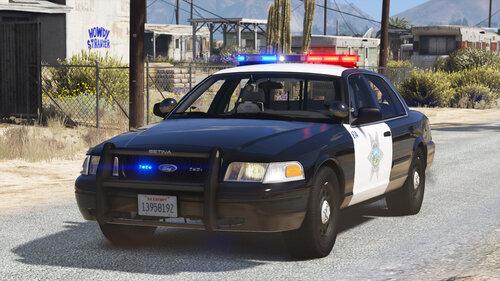
This is a 2005 LASD CVPI. This vehicle was developed entirely with DEV objects and has been left unlocked for the public. This model is NOT 100% accurate, as I only used DEV objects, but it's the first 05 CVPI to be released for GTA V to date. I have tried my best to represent the LASD's 05 CVPI as best as I could. If you have ANY objects or tips that I could use to make this vehicle better, please shoot me a DM. Have fun with the vehicle.
LASD Skins by @Windows446 Thank you!
Skins from this model:
Video:
Just edited credits, and added video, no need to re-download if you already have it.
2005 CVPI Base by Lundy
2005 CVPI 16" OEM Steel Wheels by Bxbugs123, converted from IV to V by Lundy
Federal Signal MX7000 by Lt. Caine, edited by Sgt. Kanyo, set up by Lundy
Center Console by Lundy, edited by nichankinson
Motorola XTL5000 by OfficerUnderwood
Gunrack and Laptop/Laptop Mount by Unknown, uploaded as DEV object by Matrix Customs/DevinKan on GTA5-mods.com
Shotgun by Rockstar Games
SBR by Unknown, converted from IV to V by ModHD
LASD Rambar by Sgt. Kanyo, converted from IV to V by Lundy
Partition by Lundy
Unity Spotlights by Black Jesus
Antennas by Lundy
If I missed any credits please let me know.
2005 CVPI 16" OEM Steel Wheels by Bxbugs123, converted from IV to V by Lundy
Federal Signal MX7000 by Lt. Caine, edited by Sgt. Kanyo, set up by Lundy
Center Console by Lundy, edited by nichankinson
Motorola XTL5000 by OfficerUnderwood
Gunrack and Laptop/Laptop Mount by Unknown, uploaded as DEV object by Matrix Customs/DevinKan on GTA5-mods.com
Shotgun by Rockstar Games
SBR by Unknown, converted from IV to V by ModHD
LASD Rambar by Sgt. Kanyo, converted from IV to V by Lundy
Partition by Lundy
Unity Spotlights by Black Jesus
Antennas by Lundy
If I missed any credits please let me know.
- RolandHUE and Thomas199920
-
 2
2

.thumb.png.483d1ec6df12d0a3253ddd143c36f133.png)
.thumb.png.aba303ef3347895c10dd77447e0939d1.png)

![POLISH DISPATCH [v0.8 BETA] (AI)](http://s3-screenshots.int-cdn.lcpdfrusercontent.com/resize/500/-/monthly_2026_06/fdsfs.thumb.png.e1c967aa166bd9d1ced0352f308f4ced.png)

Recommended Comments
Create an account or sign in to comment