


2018-04-12-10-57-56.thumb.JPG.c82214dd16ab6b416fe8c9b697000533.JPG)


"Not everyday you will get Sasuke X Sakura moment like this. A very comfortable cruiser, they say." 
If you like the old school style in Liberty City, you might want to get this: Declasse Merit Patrol Cruiser Federal Signal Streethawk. A Patrol cruiser with the StreetHawk lightbar for the old school look.
This is another release of generic GTA IV police cruisers with new lightbar, for newer atmosphere of original gameplay with interior decorations. Is compatible with:
P.S.: The ped mod of Sasuke and Sakura are not included. If you want one, go here.
What's New in Version 1.1
Released
- Recreated the cruiser from scratch and manual removal of original laptop and radio set, so the NYPD Pushrod has been removed
- Updated emerglights.png (using CorelDRAW X5) for allowing additional decorations to the lightbar
- Federal Signal Beacon Ray Model 17 added (placed near the TA)
- Fixed ICop Video Box, INTELLISwitch990, and P25 APX 7500 consoles not appearing in the car
- Fixed orientation/angle of INTELLISwitch990 Soundoff Signal console
- Improved further ICop Video Box, INTELLISwitch990, and P25 APX 7500 emissive layer textures
- Arbitrator camera, ICop Video Box, and P25 APX 7500 are now spawned randomly as extra_2
- New TA configuration - they are now merged together as rear indicator lights
Declasse Merit Police Patrol Cruiser
- Declasse Police Patrol originally for GTA:IV by ROCKSTAR GAMES. Further modified to its current state by SAMEER.
- UV Mapping/Template by SAMEER.
- New chassis, addition of default Merit spoilers, and further modification performed by Naruto607
- Skins by Lt.Caine
Federal Signal StreetHawk Lightbar ELS-H
- FS StreetHawk lightbar made by Lt.Caine.
- Main textures made by Lt.Caine.
- Converted to non-ELS variant by Naruto607
Federal Signal Beacon Ray Model 17
- Beacon Ray Model 17 made by Solo
- House and Red/Blue textures made by Solo.
- Made non-ELS variant for GTA IV by Naruto607
NFS Police Computer
- Police Computer ripped and converted to GTA IV by jasonct203
- Textures by jasonct203
A whole bunch of Police Equipment
- ICop Video Box, Motorola P25 APX 7500, Motorola Spectra Radio, Code 3 Dual ArrowStik Controller, Uniden Bearcat Police Scanner, SoundOff Signal Digital Switch, and LoJack Box scratch-made by Casey1989
Panasonic Arbitrator Dash Camera
- Model is scratch built by johnclark1102
- Texture is made by diablozer0d617
Brother PocketJet in Car Printer
- Model is scratch built by johnclark1102
- Texture is made by diablozer0d617
Whelen SA314 Series
- Whelen SA314 Series Modeled & converted for GTA IV by Bxbugs123
- Main textures made by Bxbugs123
- Declasse Police Patrol originally for GTA:IV by ROCKSTAR GAMES. Further modified to its current state by SAMEER.
- UV Mapping/Template by SAMEER.
- New chassis, addition of default Merit spoilers, and further modification performed by Naruto607
- Skins by Lt.Caine
Federal Signal StreetHawk Lightbar ELS-H
- FS StreetHawk lightbar made by Lt.Caine.
- Main textures made by Lt.Caine.
- Converted to non-ELS variant by Naruto607
Federal Signal Beacon Ray Model 17
- Beacon Ray Model 17 made by Solo
- House and Red/Blue textures made by Solo.
- Made non-ELS variant for GTA IV by Naruto607
NFS Police Computer
- Police Computer ripped and converted to GTA IV by jasonct203
- Textures by jasonct203
A whole bunch of Police Equipment
- ICop Video Box, Motorola P25 APX 7500, Motorola Spectra Radio, Code 3 Dual ArrowStik Controller, Uniden Bearcat Police Scanner, SoundOff Signal Digital Switch, and LoJack Box scratch-made by Casey1989
Panasonic Arbitrator Dash Camera
- Model is scratch built by johnclark1102
- Texture is made by diablozer0d617
Brother PocketJet in Car Printer
- Model is scratch built by johnclark1102
- Texture is made by diablozer0d617
Whelen SA314 Series
- Whelen SA314 Series Modeled & converted for GTA IV by Bxbugs123
- Main textures made by Bxbugs123







.thumb.png.d642ff9c57245d19627b16114298b2ea.png)


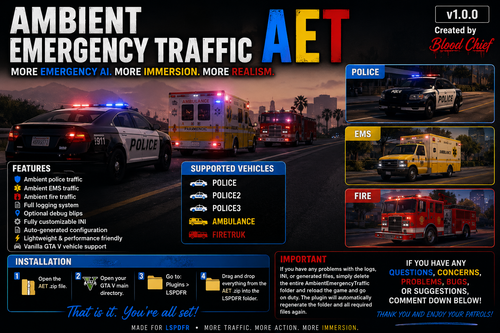


![[Non-ELS/DLSv2] LAPD BMW R1200RT-P [Addon/FiveM]](http://s3-screenshots.int-cdn.lcpdfrusercontent.com/monthly_2026_04/1.Thumbnail.thumb.png.ee831bb3bb39882cf936bde4872b0c88.png)
Recommended Comments
Create an account or sign in to comment