Skip to content
View in the app

A better way to browse. Learn more.

LCPDFR.com

A full-screen app on your home screen with push notifications, badges and more.

To install this app on iOS and iPadOS
  1. Tap the Share icon in Safari
  2. Scroll the menu and tap Add to Home Screen.
  3. Tap Add in the top-right corner.
To install this app on Android
  1. Tap the 3-dot menu (⋮) in the top-right corner of the browser.
  2. Tap Add to Home screen or Install app.
  3. Confirm by tapping Install.

Alderny Highway Patrol Skin Pack 1.0

(0 reviews)

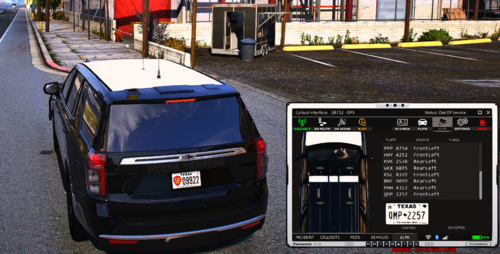
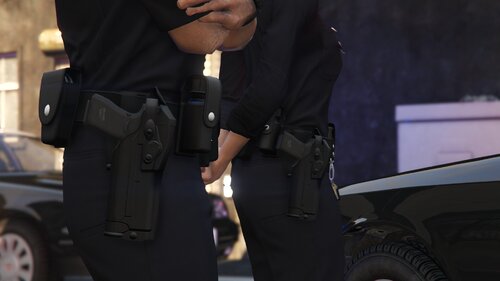
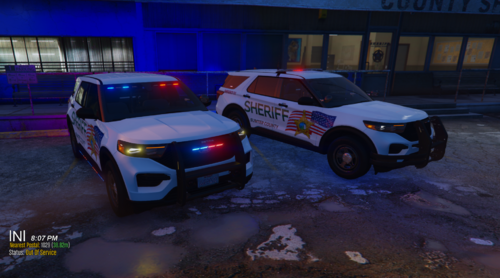
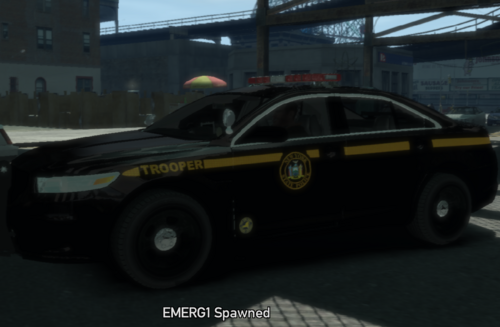
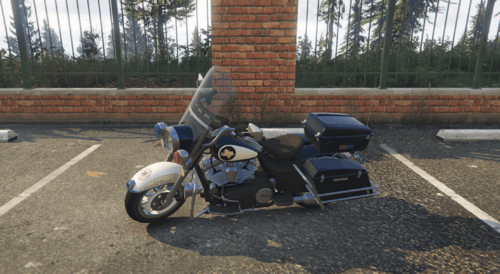
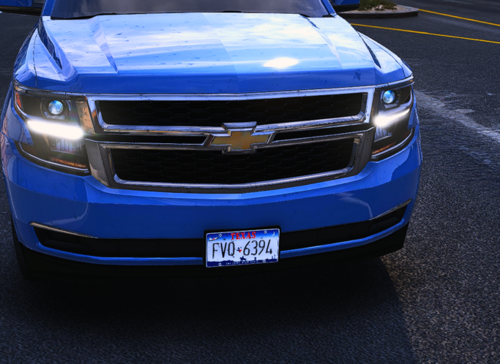
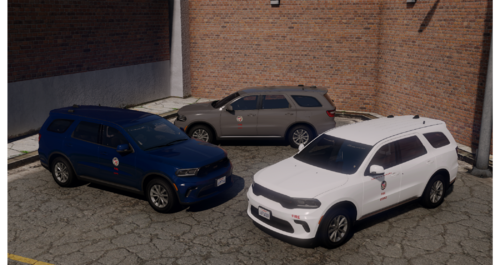
4 Screenshots

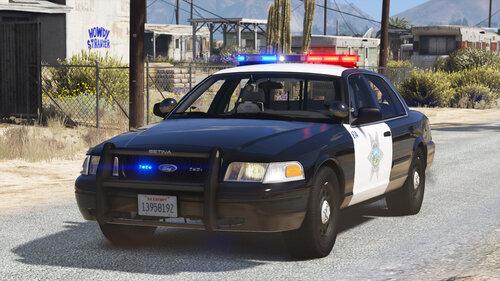
I haven't seen any highway patrol skins, and I like RP'ing in general Highway Patrol. This skin is loosely based on the Nevada Highway Patrol's New paint scheme.

Video of the Crown Vic.

http://www.youtube.com/watch?v=AROb1gtMA8U

What's New in Version 1.0

Released

  • 1.0 Initial Release

User Feedback

Recommended Comments

Pengi

Members

Nice skins. Only thing is that you call them Highway Patrol but you have STATE TROOPER written on the vehicle. A little confusing to have both names on a care

CrearBIn

Members Author

STATE TROOPER is the rank of which most highway patrol agencies assign to their members who are assigned to normal everyday duties. My state, Missouri is the Missouri State Highway Patrol, Which is sometimes referred to as Missouri State Patrol, which is leaving 2 words out. And they have STATE TROOPER written on the front fender. As I said, they're loosely based on the Nevada Highway Patrol's new vehicle fleet, which say "STATE TROOPER" on the front fender and on the push-bar.

hul123

Members

i swear alderney has an e in it

CrearBIn

Members Author

Damnit you're right I've been spelling it wrong the whole time fuck it tho

Create an account or sign in to comment

Account

Navigation

Search

Search

Configure browser push notifications

Chrome (Android)
  1. Tap the lock icon next to the address bar.
  2. Tap Permissions → Notifications.
  3. Adjust your preference.
Chrome (Desktop)
  1. Click the padlock icon in the address bar.
  2. Select Site settings.
  3. Find Notifications and adjust your preference.