




Thanks for downloading JR's Edits & Designs Vehicle Livery Pack!
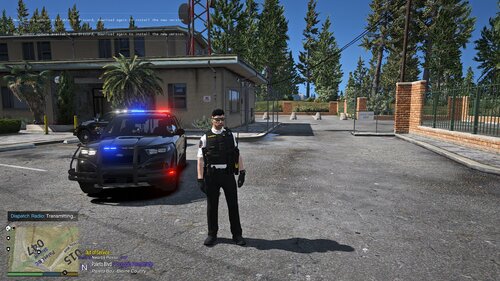
This pack was made for RangerZ's BCSO Pack and inspired by TheInfamousDev's BCSO EUP. I wanted to create liveries that would match the EUP design utilizing the badges and color scheme of the pack. I want to give a shoutout to TheInfamousDev for creating the BCSO "badge, logo" that was used for this design. All credit for the badge design and color scheme goes to him. I also want to thank RangerZ for making this incredible car pack, The Charger and Durango Duo will be perfect for any one who loves Mopar or just loves a beefy police car. The lights and liveries pair so well with the EUP I couldn't help but release this. Have fun & enjoy your patrol!
This pack was created for:
RangerZ's [ELS] BCSO Pack [Addon][Replace] 1.0.3
This pack was designed to work with:
TheInfamousDev's [EUP] BCSO Mega Pack 9.6+[FiveM/LSPDFR] 2.0.0
Rules:
- Do not upload or distribute anywhere else.
- Do not modify and upload or distribute anywhere else.
Disclaimer:
I am not responsible for anything that happens to the modification on your Grand Theft Auto 5, Computer, Rockstar Account, or any files that may be damaged due to the use of this mod.
Short Description
TheInfamousDev




![[Non-ELS/DLSv2] LAPD BMW R1200RT-P [Addon/FiveM]](http://s3-screenshots.int-cdn.lcpdfrusercontent.com/resize/500/-/monthly_2026_04/1.Thumbnail.thumb.png.ee831bb3bb39882cf936bde4872b0c88.png)





Recommended Comments
Create an account or sign in to comment