


.png.8a72d0bd38352dc7fc37fdc43a72e205.png)
.png.5e7ad091388c53fbcefb332d19871b5d.png)
.png.aa4e1658f0fcf25e0c5fb7db49e01cfb.png)
.png.5da7a0fcd4b8d6c6a1344588e2de6b8a.png)
.png.3e4473ef5e74fb5e20a8f6a5ef3facbb.png)
.png.a90c19caeface9dc72beeae2cfde873d.png)
.png.9ae9e34f9657b668c583c63fc28849eb.png)
NSWPF SANCHEZ Livery - TEXTURE
Texture by SGT Fozzy
Made for TylerIsBad's [ELS] Victoria Police Dirt Bike 1.0
Link:
I DID NOT HAVE ANY INVOLVEMENT IN THE MAKING OF THE MODEL OR THE PUBLISHING OF THE MODEL
Inside:
This texture file incudes a New South Wales Police Force dirt bike skin for TylerIsBad's Victorian Police dirt bike.
The texture based off dirt bikes used by NSWPF. It is a simple texture and is not 100% accurate and is inspired by multiple liveries used by NSW Police.
INSTALL INSTRUCTIONS:
1. Install TylerIsBad's [ELS] Victoria Police Dirt Bike 1.0 (Link above)
2. Launch OpenIV
3. Follow path = Mods -> Update -> x64 -> dlcpacks -> (DLC Location where you installed) -> dlc.rpf -> x64 -> Levels -> gta5 -> Vechicles.rpf
4. Turn on edit mode in OpenIV
5. Open "policeb.ytd"
6. Scroll until you find texture named "sanchez_sign_1". Replace this image with the one provided under the same name.
Any feedback is welcome whether negative or positive and would be greatly appreciated!
If there are any issues with the texture, please inform me so I can fix it ASAP
If you need to contact me my discord is "Fozzzy#8772"
PLEASE DO NOT reupload or modify this texture anywhere.
If you want to use the texture in a FiveM server please ask first (and refer to original models creator rules about FiveM as well).
Short Description
Joe Is Bad for the model

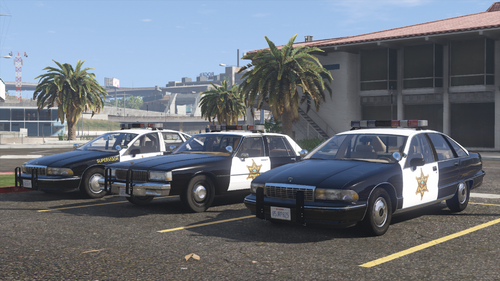
![[ELS][Addon/Replace] Blaine County Sheriff's Office Mega Pack (RSO based)](http://s3-screenshots.int-cdn.lcpdfrusercontent.com/monthly_2026_07/8.thumb.png.2388dab0d67f3ad202b0f3ef14280a2f.png)
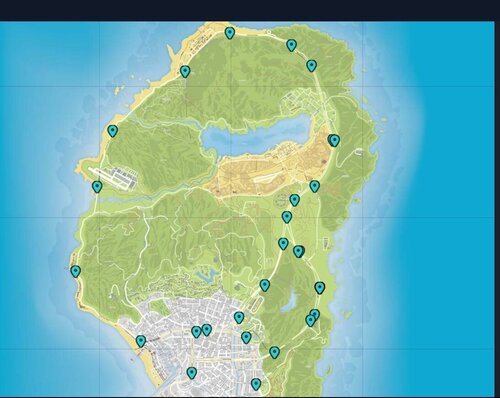


.thumb.png.987d590a4b6fb85cfcd7b327be51397d.png)
![[FiveM Ready] Fictional Gang Unit - Texture](http://s3-screenshots.int-cdn.lcpdfrusercontent.com/resize/500/-/monthly_2026_07/photo1.thumb.png.04d7e72021344238554fc43bbbc431c3.png)
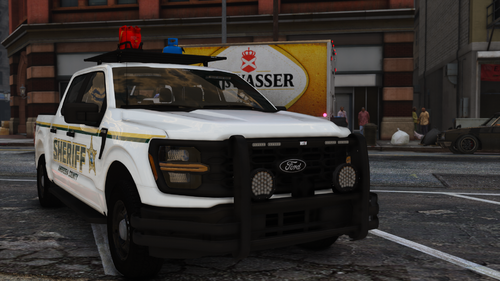

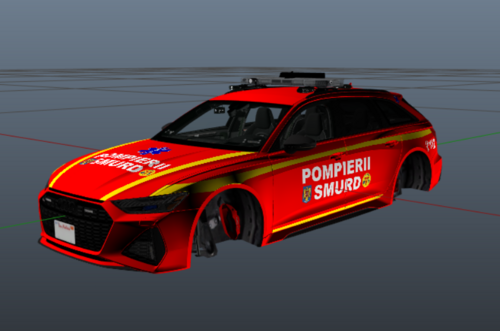



Recommended Comments
Create an account or sign in to comment