




.png.2b7457a9606f7ecc0fd87587cbae8456.png)
.png.8a4b8ce41144db798dcb3efa423b0e7f.png)
.png.c2022430cb951d0986b913c2b52d2f3a.png)
.png.b31974ba2ff1935bc63c65ce3062d0fd.png)
.png.0dc2ae9afb05f8f1fbb026afebe9da58.png)
.png.b78b2056edfe08e4e89c0ffbb463b71b.png)
.png.62d71f0ca0c903842f666a8a8e0f9082.png)
.png.d3e44b9030b096a9ff22868948c066c0.png)
.png.b12a4adc2c8e63c0ef7614074a2295f5.png)
.png.71660dbb95ab8ce27bd41be33cd7957d.png)
in memory of
#186 - Sr. Dep. Patrick Dailey (EOW 2/10/16), &
#578 - DFC Mark Logsdon (EOW 2/10/16).
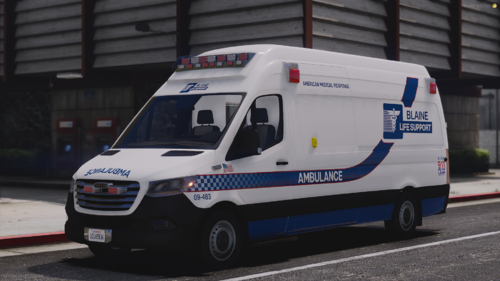
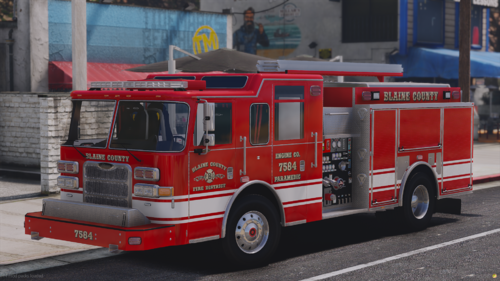
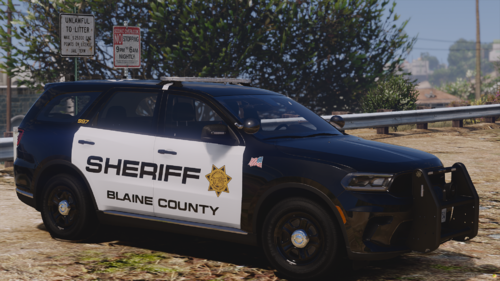
This pack is based on the vehicles used by the Harford County Sheriff's Office in northern Maryland.
*LOOKING FOR NON-FICTIONAL SKINS? I have a real HCSO pack too.*
It was designed to fit on Terry Sloman's Orlando based LSPD Pack, however all of these vehicles use fairly common templates (included), so these will work on plenty of other models.
There is an issue with the Chevy bowtie on Sloman's Tahoe model. This can be fixed by replacing the messed-up badge with an image of the real one in the tahoe_generic texture file.
Included Files:
- 3 Textures
- README with full install instructions
- Templates for the vehicle models
- Assets used:
- Licence plates
- HCSO-based BCSO logo (in case you want to make your own with the same symbol)
- HCSO-based BCSO K9 logo
- Screenshots
See "README" for installation requirements & instructions.
FEEL FREE TO USE THIS FOR ANY PURPOSE. JUST THROW ME SOME CREDIT!
Follow my twitter (@bigbrox3_FR) for updates on upcoming texture packs:
https://twitter.com/bigbrox3_FR
***If you have any suggestions or issues please share them. I don't know until you tell me!***



![[Non-ELS/DLSv2] LAPD BMW R1200RT-P [Addon/FiveM]](http://s3-screenshots.int-cdn.lcpdfrusercontent.com/resize/500/-/monthly_2026_04/1.Thumbnail.thumb.png.ee831bb3bb39882cf936bde4872b0c88.png)







Recommended Comments
Create an account or sign in to comment