Skip to content
View in the app

A better way to browse. Learn more.

LCPDFR.com

A full-screen app on your home screen with push notifications, badges and more.

To install this app on iOS and iPadOS
  1. Tap the Share icon in Safari
  2. Scroll the menu and tap Add to Home Screen.
  3. Tap Add in the top-right corner.
To install this app on Android
  1. Tap the 3-dot menu (⋮) in the top-right corner of the browser.
  2. Tap Add to Home screen or Install app.
  3. Confirm by tapping Install.

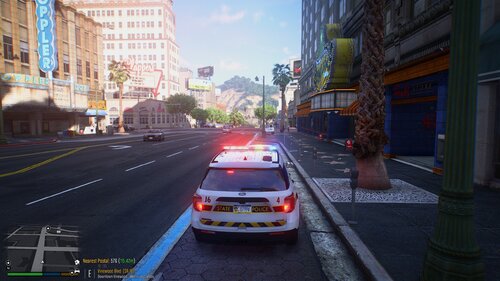
Washington State Patrol CVPI Skin. 1.0.0

(0 reviews)

3 Screenshots

Hey There! This is one of my first skin and although a simple one, it's a start. Please leave any suggestions and/or criticism for this texture. Feel free to put either a good or bad review.

The following vehicles goes into mods/x64e.rpf/levels/gtav/vehicles.rpf and just drag the following vehicle into there.

Use this vehicle to put the texture on


wsp4.PNG

User Feedback

Recommended Comments

Deactivated Member

Deactivated

'tis a nice car but for anyone looking to actually use this, Washington State PD does not use side runners on any of their vehicles nor to my knowledge do they have marked slicktop units. 

JayPD

Members Author

(edited)

Yeah, like I included in ReadMe it isn't exact CVPI from irl

I may try a mega pack sometime.

There is also a version without siderunners included in Gump's CVPI which is awesome!

Edited by JayPD

Deactivated Member

Deactivated

2 hours ago, JayPD said:

Yeah, like I included in ReadMe it isn't exact CVPI from irl

I may try a mega pack sometime.

There is also a version without siderunners included in Gump's CVPI which is awesome!

I noticed your lights aren't bright, I recommend using RadianceV to give your lights that realistic glow they seem to be lacking. 

Create an account or sign in to comment

Account

Navigation

Search

Search

Configure browser push notifications

Chrome (Android)
  1. Tap the lock icon next to the address bar.
  2. Tap Permissions → Notifications.
  3. Adjust your preference.
Chrome (Desktop)
  1. Click the padlock icon in the address bar.
  2. Select Site settings.
  3. Find Notifications and adjust your preference.