Skip to content
View in the app

A better way to browse. Learn more.

LCPDFR.com

A full-screen app on your home screen with push notifications, badges and more.

To install this app on iOS and iPadOS
  1. Tap the Share icon in Safari
  2. Scroll the menu and tap Add to Home Screen.
  3. Tap Add in the top-right corner.
To install this app on Android
  1. Tap the 3-dot menu (⋮) in the top-right corner of the browser.
  2. Tap Add to Home screen or Install app.
  3. Confirm by tapping Install.

1996 AND 2004 CROWN VICTORIA (LSPD) TEXTURE 1.0.0

(1 review)

10 Screenshots

THIS IS MY NEW VERY OWN DESIGN I CREATED AND HAD THE IDEA SO CHECK IT OUT!!

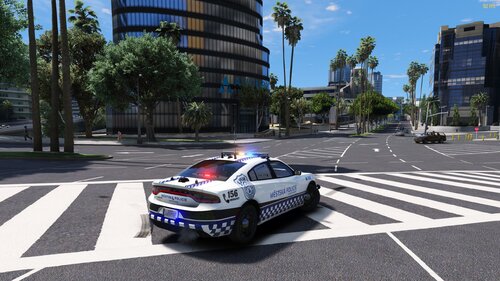
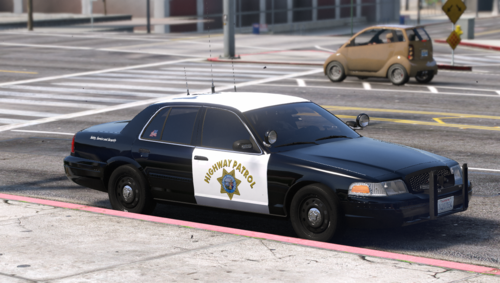
OFFICER K SLIMM DESIGN 96 CVPI LSPD UNIT 243.png

OFFICER K SLIMM DESIGN 2003-2006 CVPI.png

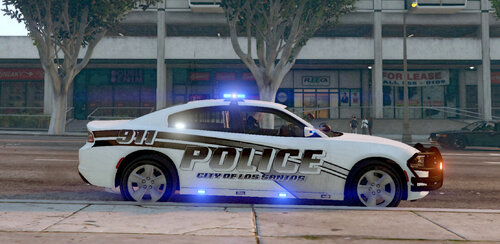
OFFICER K SLIMM DESIGN 2004 CVPI UNIT 309.png

User Feedback

Recommended Comments

Chemo

Members

How to upload folders to lspdfr


Make a folder title it whatever you want, drag the files into that folder, open Winrar, Click add at the top right, then click file, then where it says "File to add" click append, find the folder where you put the texture, then click OK. Then drag the .rar file winrar makes to desktop. Then upload the .rar to LSPDFR

zach016

Members

Actually, I like the idea you're going for, however it's not something I would use myself.


I kind of agree with Chemo's points to a certain extent.

- "Los Santos Police" could use a font change.

- I think you could make the moon and stars work, but I personally think they are far too large. At their current size, they draw the eye in such a way that they almost look like a distinct picture, rather then a part of the skyline. Perhaps play with resizing, and re-positioning them.

- The "Dial 911" area needs a little polishing.


Either way, good idea, execution could just use some polishing in ways I think are well with'in your skillset.

Officer K Slimm

Members Author

Im working on a new livery

Create an account or sign in to comment

Latest Mods

Account

Navigation

Search

Search

Configure browser push notifications

Chrome (Android)
  1. Tap the lock icon next to the address bar.
  2. Tap Permissions → Notifications.
  3. Adjust your preference.
Chrome (Desktop)
  1. Click the padlock icon in the address bar.
  2. Select Site settings.
  3. Find Notifications and adjust your preference.