Skip to content
View in the app

A better way to browse. Learn more.

LCPDFR.com

A full-screen app on your home screen with push notifications, badges and more.

To install this app on iOS and iPadOS
  1. Tap the Share icon in Safari
  2. Scroll the menu and tap Add to Home Screen.
  3. Tap Add in the top-right corner.
To install this app on Android
  1. Tap the 3-dot menu (⋮) in the top-right corner of the browser.
  2. Tap Add to Home screen or Install app.
  3. Confirm by tapping Install.

LSPD Winnipeg Style FPIU 1.0.0

(0 reviews)

6 Screenshots

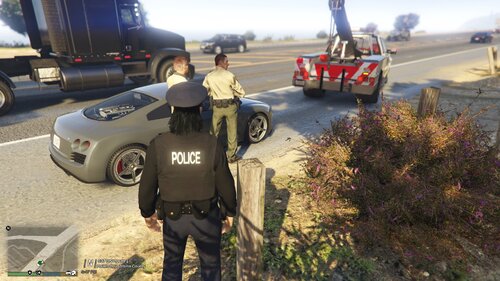
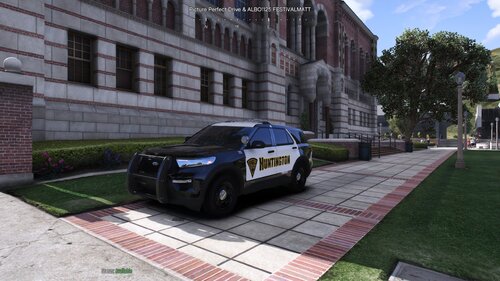
These textures are based off of the skins the Winnipeg Police use, but changed to the generic LSPD.

This skin fits Thehurks 2016 FPIU. This can be found here: 

**Sorry, I linked the wrong vehicle before**

If you want a custom WPS car with your own car number, unit/division, or custom license plate just send me a PM!

Included are the following units:

104 - General Patrol
160 - Supervisor
TAC60 - Tactical Support
T02 - Traffic Enforcement
K96 - K-9 Unit
More to come in the future. Feel free to make requests!
 

Do not reupload anywhere without my permission first. Personal edits don't bother me, but do not reupload!

You can download the matching CVPI here: 


User Feedback

Recommended Comments

thesimulator91

Members

hey man, amazing skins, any chance you could do a skin for the taurus? im from winnipeg myself and these are the best skins ive come across so far, would be great if you could make one

olddutch7

Members Author

(edited)

Hello,


Thanks for the input! I already have tons of skins for the Taurus, Explorer, Crown Vic and a few more. What are you looking for? I can do some custom units for you as well.


I just noticed too that these are the LSPD ones.... are you looking for ones with the Winnipeg crest or the LSPD logo?

Edited by olddutch7

thesimulator91

Members

i would prefer the winnipeg ones if they are available

Create an account or sign in to comment

Latest Mods

Account

Navigation

Search

Search

Configure browser push notifications

Chrome (Android)
  1. Tap the lock icon next to the address bar.
  2. Tap Permissions → Notifications.
  3. Adjust your preference.
Chrome (Desktop)
  1. Click the padlock icon in the address bar.
  2. Select Site settings.
  3. Find Notifications and adjust your preference.