


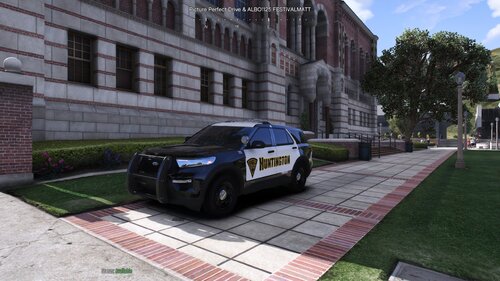
People like the RAM that I did in this light set up, so thought I'd create a F150 version of it. It uses the exact same build as the RAM. This was meant to be released last week but due to the update I couldn't take any pictures for release.
Make sure to join my discord for future work and updates: https://discord.gg/atpTS4z
EXTRAS:
Extra 12- ALPRs
Extra 10- Radar
Videos with this vehicle:
Vehicle's from Series:
Bugs:
-No known issues.
Testing wasn't incredibly in-depth, please report any issues to myself.
Disclaimer:
-Don’t re-upload to any other sites without permission from me.
-If you want to make a skin. Just link the model in the description
-If you use ELS on FiveM. Feel free to use it.
-Don’t Rip any parts off this vehicle.
-If you make a video with this, please consider linking it in the description or comments.
Edited by Steve6645
Short Description
Bases:
Original 2017 Ford Raptor from FH3, revamped, remodeled, and turned into a 2018 F-150 Police Responder by GeorgieMoon.
Purchased by Steve6645
Lights:
FS CN SignalMaster modeled and textured by Cj24.
FS Impaxx lights modeled and textured by Cj24.
FS MicroPulse modeled and textured by Cj24.
FS Spectralux ILS modeled and textured by Cj24.
Fedsig Micropulse Wide Angle modeled and textured by Five0/OfficerFive0
Exterior:
Motorola antennas modeled and textured by Cj24.
PIP ANPR by Kane104
ALPR roof mount modeled and textured by KLE0
PB400 modeled by Ainsley Harriot, textures by Cj24
Toolbox Modelled & Textured by Terry Sloman
Federal Signal AS124 Modeled and Textured by Jophics
Unity LED spotlight modeled and textured by Cj24.
Thermal Camera modeled and textured by Steve6645.
Custom back rack modeled by Rougethunder
Interior:
Light Brackets Modeled and textured by Billy Johnsson
Radar modeled and textured by Jakub
(Federal Signal Pathfinder head unit & mic modelled by Dirty Dan
Head unit texture by arab brother/tawfiq)
Motorola XRP 4550 Modelled & Textured by Terry Sloman
Panasonic Arbitrator dashcam modeled and textured by Cj24.
Setina Partition modeled and textured by Chungah, Setina "Bodyguard" emblem by Sniper67
Console Modelled & Textured by Prod
Weapon mount and 870 shotgun modeled and textured by Cj24, M4 rifle modeled and textured by
Kane104.
Cones by Lix
Interior boot props by Steve.
(Panasonic Toughbook FZ 55 inspired laptop scratch modeled by Recon - discord.gg/z3SSfWDygx
Gamber-Johnson NotePad V inspired universal laptop cradle scratch modeled by Recon
Gamber-Johnson Mongoose 9in inspired swivel arm scratch modeled by Recon
Textures by Recon
Screw Normal texture by Lix)



![Jed's Mega-Garage Sale [ELS]](http://s3-screenshots.int-cdn.lcpdfrusercontent.com/monthly_2023_03/BCRP15Charger(3).thumb.jpg.335a5c2afffd469b763c8cb47d7219f9.jpg)


![Los Santos Transit Police EUP [SP/FiveM]](http://s3-screenshots.int-cdn.lcpdfrusercontent.com/resize/500/-/monthly_2026_06/LOGO.thumb.png.87eb35d6634bad9a16689f0bdd04b485.png)
.thumb.png.e3e66e49fc2fbfb99cfb553875b27e7e.png)


Recommended Comments
Create an account or sign in to comment