


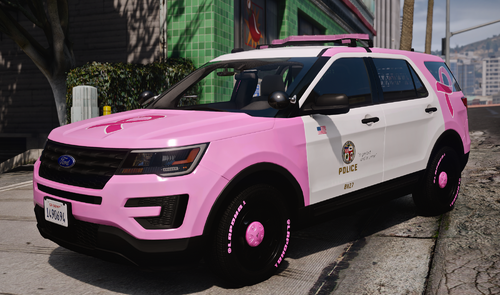
==========Tempesta Police Model==========================
Base mdoel by Rockstar Games
Edited into police model by RevRevGaming
Generic Rambar by CYNAX and edited by Black Jesus
Lightbar by Rockstar Games
If Installed properly vehicle should have all default tuning parts available to use
==========Installation Instructions==========================
**Vehicle Model Install**
Grand Theft Auto V\mods\update\x64\dlcpacks\patchday16ng\dlc.rpf\x64\levels\gta5\vehicles.rpf
-Place the yft and ytd files here
**Vehicles Meta Install**
Grand Theft Auto V\mods\update\update.rpf\common\data\levels\gta5
-Replace Vehicles Meta here
-Or just replace line in your own meta with the one provided
**Carvariations Meta Install**
Grand Theft Auto V\mods\update\x64\dlcpacks\mpimportexport\dlc.rpf\common\data
-Replace Carvariations Meta here
-Or just replace line in your own meta with the one provided
**IF REPLACING OTHER SLOT**
-Rename the model names to name of desired model
--police4.yft
--police4_hi.yft
--police4.ytd
-Rename these POLICE4s to the name of the desired model in the vehicles.meta
-----> <modelName>police4</modelName>
-----> <txdName>police4</txdName>
<handlingId>TEMPESTA</handlingId>
-----> <gameName>POLICE4</gameName>
-Rename POLICE4 to the name of the desired model in the carvariations.meta
<Item>
-----> <modelName>POLICE4</modelName>
<colors>
Edited into police model by
Generic Rambar by CYNAX and edited by Black Jesus
Lightbar by Rockstar Games


(2).thumb.png.62d8dc71a69a1994803920a19551051e.png)
Recommended Comments
Create an account or sign in to comment