




.png.c82fd16bd0148bfab35d1b2c37aa5b57.png)
Living Los Santos
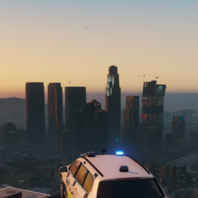
Living Los Santos makes Los Santos feel more alive by dynamically adjusting traffic, pedestrians and parked vehicle densities throughout the day.
Instead of having the same density constantly, Living Los Santos creates realistic changes that is based on ingame time, weather and location.
You can customize the settings to however you'd like.
Here's the features:
Morning rush hour traffic
Evening rush hour traffic
Quiet late-night streets
Dynamic pedestrian density
Dynamic parked vehicle density
Weather-based density changes
Nightlife zones that remain active after dark
Fully customizable .ini file
Lightweight and performance-friendly
Examples:
Roads becomes busier during rush hour.
Streets become noticeably quieter late at night.
Bad weather such as rain and thunder reduces pedestrian density and slightly increases vehicle traffic.
Nightlife zones like Downtown Vinewood remain active while the rest of the city quiets down.
Requirements:
RagePluginHook
Installation:
Place LivingLosSantos.dll into your GTA V\Plugins folder.
Place LivingLosSantos.ini into your GTA V\Plugins folder.
Launch GTA V through RagePluginHook.
Open the RagePluginHook console (F4 by default).
Type: "LoadPlugin Living Los Santos.dll"
Configuration:
All settings can be customized through Living Los Santos.ini
Default Debug Key: F10
The weather multiplier works like this:
Weather multipliers are applied on top of the current density values.
Example:
PedMultiplier=1.25
RainPedMultiplier=0.50
Result:
1.25 × 0.50 = 0.625
The final pedestrian density during rain would then be 0.625x.
This applies to all other density values too.
Made by Truthless
Feedback, suggestions and balancing recommendations are always welcome.
Short Description
AI disclosure
The author has disclosed that AI tools were used in creating the following aspects of this file:
- Images
- Mod and Mod Content (Substantial)
I'm terrible at coding, so all the coding is done by AI. However the idea, debugging, testing etc. is done by me. Thumbnail is also edited by AI.
- Casey112 and Michael21107
-
 2
2
.thumb.png.0687db78b4134e317cdafa314a9b9fff.png)

![Blaine County Sheriff's Office EUP Package [ADDON & REPLACE]](http://s3-screenshots.int-cdn.lcpdfrusercontent.com/resize/500/-/monthly_2026_06/Screenshot2026-06-06000350.thumb.png.fe09a5cf104f4c60ed93663b24da91c1.png)


![Texas DPS EUP Package [ADDON & REPLACE]](http://s3-screenshots.int-cdn.lcpdfrusercontent.com/resize/500/-/monthly_2026_06/Screenshot2026-06-05005718.thumb.png.371b7aedeca385b6384ad05056d122ab.png)
Recommended Comments
Create an account or sign in to comment