Skip to content
View in the app

A better way to browse. Learn more.

LCPDFR.com

A full-screen app on your home screen with push notifications, badges and more.

To install this app on iOS and iPadOS
  1. Tap the Share icon in Safari
  2. Scroll the menu and tap Add to Home Screen.
  3. Tap Add in the top-right corner.
To install this app on Android
  1. Tap the 3-dot menu (⋮) in the top-right corner of the browser.
  2. Tap Add to Home screen or Install app.
  3. Confirm by tapping Install.

CheckCheck 1.0.2 1.0.0

(1 review)

6 Screenshots


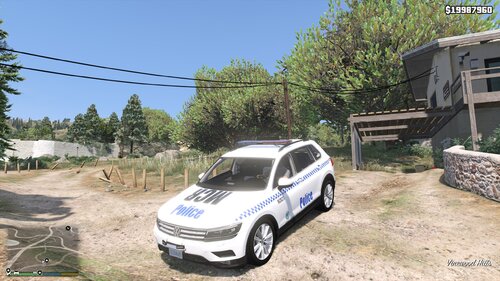
         This is my Second Map created so do not get upset if there are some small issues. This map is a check point containing three different checkpoints all in the same area. The are a good size to start off.The different three locations are relatively close to each other. Also all the locations are listed on the maps in screenshots.Hopefully everybody can enjoy this map.

This is Just a update to the first I put the 1.0.2 in Due to lspdfr being updated I can't update any files so i have to create a new version.

Check Out my Youtube Channel @ The Clashing Gamer

Spoiler

Nothing Here
User Feedback

Recommended Comments

Quakex64

Members

can you use a clean map image and circle where you put them????  I cant see where they are in the image you posted... could be anywhere with that one

uncountable

Members

On ‎1‎/‎6‎/‎2016 at 7:26 PM, Quakex64 said:

can you use a clean map image and circle where you put them????  I cant see where they are in the image you posted... could be anywhere with that one

If you start at the airport and follow the red line, there will be small red circles and I believe those are the locations. Zoom in on the airport and you should see the red line and be able to follow it

Create an account or sign in to comment

Account

Navigation

Search

Search

Configure browser push notifications

Chrome (Android)
  1. Tap the lock icon next to the address bar.
  2. Tap Permissions → Notifications.
  3. Adjust your preference.
Chrome (Desktop)
  1. Click the padlock icon in the address bar.
  2. Select Site settings.
  3. Find Notifications and adjust your preference.