Skip to content
View in the app

A better way to browse. Learn more.

LCPDFR.com

A full-screen app on your home screen with push notifications, badges and more.

To install this app on iOS and iPadOS
  1. Tap the Share icon in Safari
  2. Scroll the menu and tap Add to Home Screen.
  3. Tap Add in the top-right corner.
To install this app on Android
  1. Tap the 3-dot menu (⋮) in the top-right corner of the browser.
  2. Tap Add to Home screen or Install app.
  3. Confirm by tapping Install.

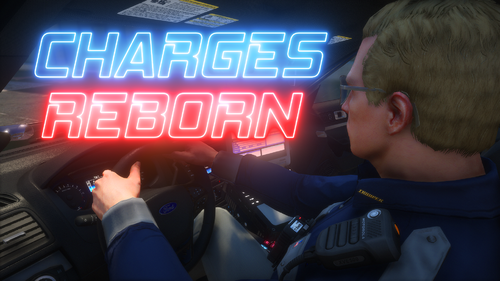
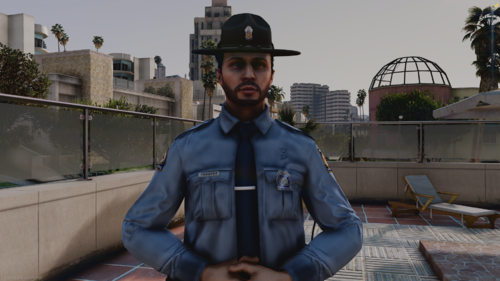
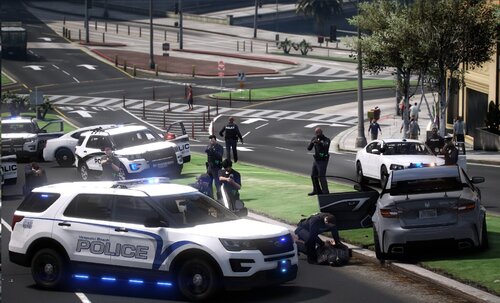
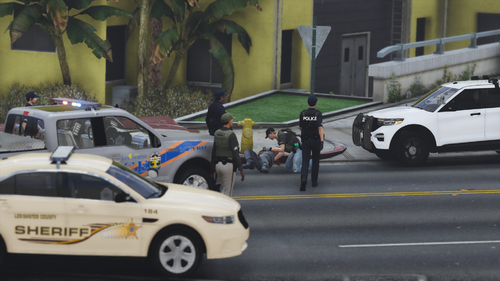
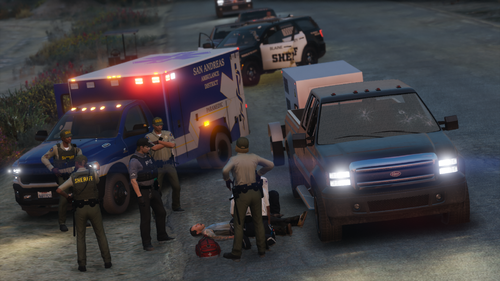
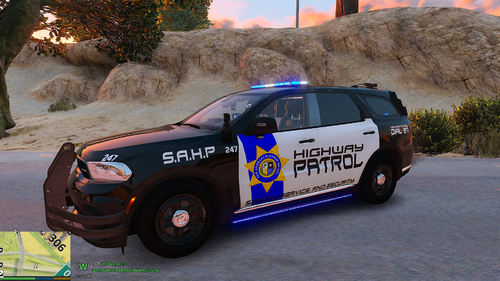
New LAPD Loading Screens for LSPDFR 1.5.0

(0 reviews)

7 Screenshots

Instal: go in to your GTA5 Directory and delete the Folder * LoadingScreens * Copy the new one. Start RageHookPlugin go to Settings and then Advanced Settings, click * Enable Custom Background * for Loading Screen...... 
Don't forget backup your files !!!!!!!!!!!!!! 

sorry for bad english !!!!!

What's New in Version 1.5.0

Released

New Screens added.......

User Feedback

Recommended Comments

Epic Gaming

Members

Not sure how to install? Wheres the folder called Loading Screens?

Patrobinson

Members Author

vor 48 Minuten schrieb Epic Gaming:

Not sure how to install? Wheres the folder called Loading Screens?


when you have no Folder in your GTA5 Folder , create a Folder called " LoadingScreens " in this folder unzip the file.......


sorry for bad english.........

Epic Gaming

Members

1 hour ago, Patrobinson said:


when you have no Folder in your GTA5 Folder , create a Folder called " LoadingScreens " in this folder unzip the file.......


sorry for bad english.........

Oh Ok thanks!

TrooperA1868

Members

CAN YOU DO A NON LAPD ONE PLZ?!

Patrobinson

Members Author

vor 19 Stunden schrieb iGoDPrince:

CAN YOU DO A NON LAPD ONE PLZ?!

comming soon.........

Create an account or sign in to comment

Account

Navigation

Search

Search

Configure browser push notifications

Chrome (Android)
  1. Tap the lock icon next to the address bar.
  2. Tap Permissions → Notifications.
  3. Adjust your preference.
Chrome (Desktop)
  1. Click the padlock icon in the address bar.
  2. Select Site settings.
  3. Find Notifications and adjust your preference.