Skip to content
View in the app

A better way to browse. Learn more.

LCPDFR.com

A full-screen app on your home screen with push notifications, badges and more.

To install this app on iOS and iPadOS
  1. Tap the Share icon in Safari
  2. Scroll the menu and tap Add to Home Screen.
  3. Tap Add in the top-right corner.
To install this app on Android
  1. Tap the 3-dot menu (⋮) in the top-right corner of the browser.
  2. Tap Add to Home screen or Install app.
  3. Confirm by tapping Install.

LAPD Badge for 0.4.2 1.0.0

(1 review)

2 Screenshots

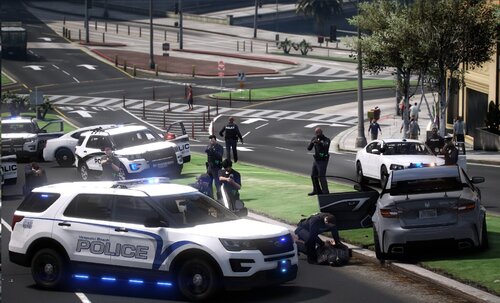
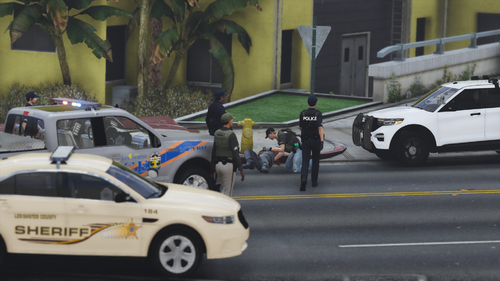
LAPD Texture on the LSPD Badge that was made from Sam
Everything you need to know is in the  Read me document.


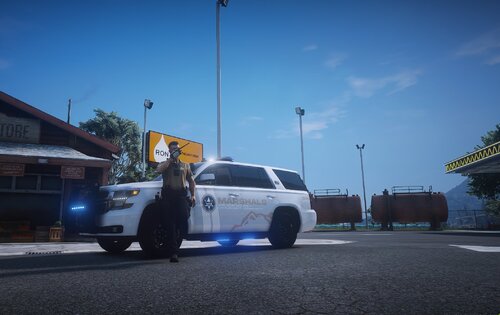
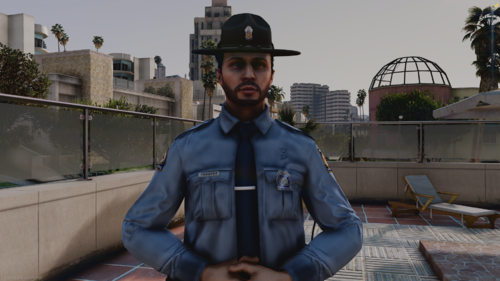
Showcase of the Badge: 


Original file:


User Feedback

Recommended Comments

Mrpoliceems

Members

Bit of an issue, I seem to not have a x64.rpf file in my openiv and gta v directory mods folder.

Officer Dennis

Members Author

On 6/25/2019 at 2:31 AM, Mrpoliceems said:

Bit of an issue, I seem to not have a x64.rpf file in my openiv and gta v directory mods folder.

You need to Copy your Real x64c.rpf into your Mods Folder YOU NEED TO COPY IT

or otherwise you might mod your real game witch is not good. its x64c.rpf you have that in your game folder otherwise the game cant work 

If you still have a problem tell me and i try to help you as good as i can

Officer Dennis

Members Author

5 hours ago, sertoaluns said:

how work fivem multiplayer


Idk i never tried using the badge on FiveM don't play Roleplay for a long time now

MiGiNo

Members

name of animation?

sertoaluns

Members

i don't know maybe you know and i thought you could help


stlcpd

Members

Is there a way you can use this in FiveM

HEADSHOTPLAYER

Members

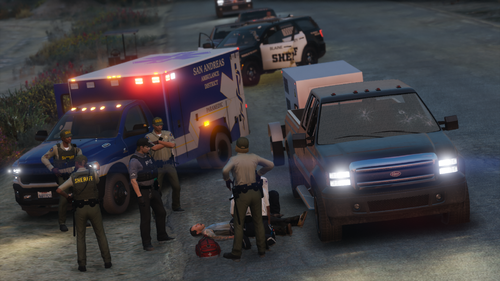
M8, can you tell me what's name of this Animation

Glock18

Members

Does anyone know the clipset name of the animation?

Create an account or sign in to comment

Latest Mods

Account

Navigation

Search

Search

Configure browser push notifications

Chrome (Android)
  1. Tap the lock icon next to the address bar.
  2. Tap Permissions → Notifications.
  3. Adjust your preference.
Chrome (Desktop)
  1. Click the padlock icon in the address bar.
  2. Select Site settings.
  3. Find Notifications and adjust your preference.