


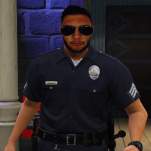


Who said that you have to be a law enforcement officer to be a hero?
Be a hero isn't just wear an uniform with a badge on it. It's very much more of what you could think.
Never heard about fire department? Paramedics? Lifeguard? National Guard? Didn't they count?
After the release of the California Law Enforcement EUP Pack, today I have another thing that can let you play from a different point of view to serve: the California Serve & Rescue EUP Pack. This pack includes the following agencies:
- Los Angeles Fire Department (LAFD)
- Los Angeles County Fire Department (LACo.FD)
- Los Angeles County Lifeguards (LACo.L)
- Ventura County Fire Department (VCFD)
- American Medical Response (AMR)
- California National Guard (CNG)
You don't have to fight crime to be a hero.
Of course, to use this pack you need these:
Makes even more sense with this:
Recommend this as well:
Hope you like it. Enjoy!
- Models by EUP Staff
- Textures by me
- Textures by me

![Arkansas State Police [4K]](http://s3-screenshots.int-cdn.lcpdfrusercontent.com/resize/500/-/monthly_2026_07/Screenshot_3115.thumb.png.4f63fecf4f5d35f15278a1b28de40525.png)


![[ELS] Thero's State Wide Services Pack (LEO, EMS, Fire, Plus More)](http://s3-screenshots.int-cdn.lcpdfrusercontent.com/monthly_2026_06/20260627183038_1.thumb.jpg.637012309d27c23370617cdae59974ca.jpg)
.thumb.png.987d590a4b6fb85cfcd7b327be51397d.png)
.thumb.png.185cd3513bd1de8ad9981c46f33d0bc4.png)




Recommended Comments
Create an account or sign in to comment