Skip to content
View in the app

A better way to browse. Learn more.

LCPDFR.com

A full-screen app on your home screen with push notifications, badges and more.

To install this app on iOS and iPadOS
  1. Tap the Share icon in Safari
  2. Scroll the menu and tap Add to Home Screen.
  3. Tap Add in the top-right corner.
To install this app on Android
  1. Tap the 3-dot menu (⋮) in the top-right corner of the browser.
  2. Tap Add to Home screen or Install app.
  3. Confirm by tapping Install.

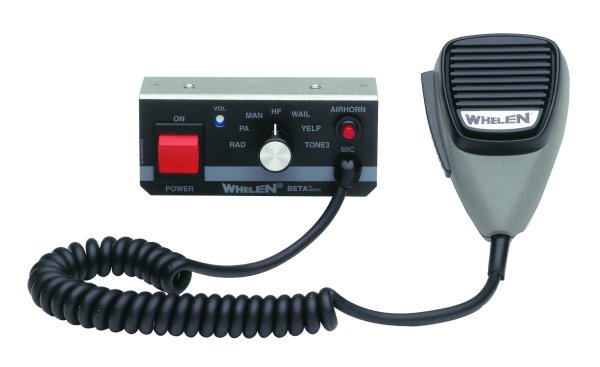
Prophet's Whelen 295 1.0.0

(3 reviews)

1 Screenshot

Download Files are fixed and now in ZIP folder!

This is a simple audio modification that swaps out the default police tone's with those from a Whelen 295 siren system. This modification changes the tones for the regular Police vehicles i.e not the FIB Buffalo, Rancher or Bike. I did this on purpose so that the siren does not become the only tones you hear during a pursuit that involves multiple agencies. Video below gives a brief demo of the different tones in action.

To install follow this simple tutorial from OpenIV: https://www.youtube.com/watch?v=ymLrNTjGBXA


What's New in Version 1.0.0

Released

FIXED DOWNLOAD ISSUE! Was a huge oversight on my end.

User Feedback

Recommended Comments

Synthacrat

Members

So was thinking put all the files in one folder and .zip it up...?

Prophet

Members Author

So was thinking put all the files in one folder and .zip it up...?

Jesus! What an oversight. Gonna fix that up right away!

F A D E D

Members

Jesus! What an oversight. Gonna fix that up right away!

Sounds like my favorite siren from GTA IV! I was trying to recreate it, thanks man!

Prophet

Members Author

Sounds like my favorite siren from GTA IV! I was trying to recreate it, thanks man!

No worries glad I could help!

So was thinking put all the files in one folder and .zip it up...?

Download is fixed.

Synthacrat

Members

No worries glad I could help!

Download is fixed.

Thank you. I stockpile siren mods so I can switch them quickly. Glad you got this one released.

Prophet

Members Author

Thank you. I stockpile siren mods so I can switch them quickly. Glad you got this one released.

NO, thank you! If you had not posted that earlier post I would have sat here wondering why people weren't downloading :thumbsup:

Synthacrat

Members

NO, thank you! If you had not posted that earlier post I would have sat here wondering why people weren't downloading :thumbsup:

I like to help people, that is what I do and try my best to do. That's why I want to be an officer.

Prophet

Members Author

Good one!

Appreciate it!

BlueSteelShield

Members

How did you get such a far view on First Person!

Element

Members

(edited)

Nice work!       I watched the vid but still don't understand the install. Where do i import a OAC everything is awc?

Edited by Element

Prophet

Members Author

Nice work!       I watched the vid but still don't understand the install. Where do i import a OAC everything is awc?

Everthing is Awc but that's okay the OAC will convert to AWC when placed.

Schecter004

Members

How to install? No readme! And the instructions on the OpenIV YT channel sucks, because it's blurry. I can't see anything. So, how to install?

Prophet

Members Author

How to install? No readme! And the instructions on the OpenIV YT channel sucks, because it's blurry. I can't see anything. So, how to install?

Use OPENIV to open up the folder titled 64x then open Audio>SFX> Resident.rpf and place the OEC inside resident.rpf. Then launch and enjoy!

Every time I mod it, GTA downloads an update, and the sirens revert to their old state. Is there any way to stop this?

Deactivated Member

Deactivated

(edited)

.

Edited by Account Deleted

avengedtaco15

Members

love it  imma get it  sounds like the one I have here in florida   cheers mate!!

Create an account or sign in to comment

Latest Mods

Account

Navigation

Search

Search

Configure browser push notifications

Chrome (Android)
  1. Tap the lock icon next to the address bar.
  2. Tap Permissions → Notifications.
  3. Adjust your preference.
Chrome (Desktop)
  1. Click the padlock icon in the address bar.
  2. Select Site settings.
  3. Find Notifications and adjust your preference.