


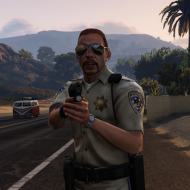
So the other day I was messing around with openiv's new animation viewer. This led me to look around at just how walking styles are set up. I noticed that most of the animation packets are the same (ie, they all have 'idle' 'start walk' 'walk' etc...), which is why you can change pedestrian walking styles. This made me wonder if I could finally get SWAT guys to stand correctly and use their rifles right when walking. I found all of the unique movements (hand signals) that SWAT peds use are in their own file that doesn't show up in peds.ide. I hunted around for the walking/idle style that the cops holding assault rifles on guard duty use, and found it! It's called move_rifle.
So, how do we use it?
Let's look at the vanilla SWAT line:
M_Y_Swat, M_Y_Swat_p, COP, move_m@swat, GESTURES@MALE, GESTURES@M_PHONE,FACIALS@M_LO, visemes@m_lo, 0, move_m@swat, null, -1,-1, PED_TYPE_PLAYER, VOICE_PLY_CR, VOICE_PLY_CR
The lines breakdown somewhat like this:
M_Y_SWAT = This is simply saying what ped you're using. It corresponds to the .wdd in componentpeds.img.
M_Y_SWAT_P = This is the helmet/hat that the ped uses. It is almost always the same as the ped name, just with _p. Write NULL if you don't want them to have hats.
COP = This is the relationship group it is in. COP, CIVMALE, CIVFEMALE, etc...
move_m@swat = This is the important one. This is the default walking style of the pedestrian in question. This covers how the walk, idle, and run. We'll be changing this to move_rifle.
I don't specifically know what the rest of the lines are, but I believe they deal with how the ped gestures and uses phones.
Sure enough, it works fine! Here's a line for the regular NOOSE peds (yes, it is the same even if you've modified the texture or something)
M_Y_Swat, M_Y_SWAT_P, COP, move_rifle, GESTURES@MALE, GESTURES@M_PHONE, FACIALS@M_LO, visemes@m_lo, 0, move_rifle, null, -1,-1, PED_TYPE_PLAYER, VOICE_PLY_CR, VOICE_PLY_CR
And here's the line for (removes the spawning of NOOSE helmets. If you find the idea of helmets randomly exploding out of cops heads the first time they get shot funny, than use the first line.)
M_Y_Swat, null, COP, move_rifle, GESTURES@MALE, GESTURES@M_PHONE, FACIALS@M_LO, visemes@m_lo, 0, move_rifle, null, -1,-1, PED_TYPE_PLAYER, VOICE_PLY_CR, VOICE_PLY_CR
So there you go. The rather common problem has been solved!
(note to mods, I'll be adding this to the tutorial section in just a second.)
Recommended Comments
Join the conversation
You can post now and register later. If you have an account, sign in now to post with your account.