
RolandHUE
Members
-
Joined
-
Last visited
Everything posted by RolandHUE
-
-
-
-
-
-
-
-
-
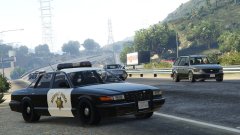 I really want to have this car in my game! Nice job with the livery.
 -
-
-
Please, dont forget this minor legend too:
-
What are the lightsettings for interceptor, the coronas of my civilian version for this car are in the wrong position.
-
-
-
-
-
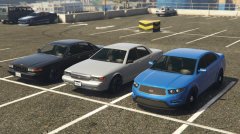 All cars are civilian.
 -
-
Could someone give me carvariations colors numbers for the Stanier, i added the 2nd Generation and Interceptor as Civilian but when it spawn its only on white color. And the right Light Settings for the two cars too.
-
Someone just thought that, but there are a lot of models to be edited first, soon these lights will come to GTA V for sure.
-
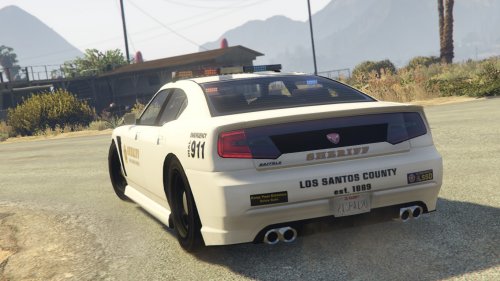 Files needed: [DEV] Templated Buffalo S 1.5: This mod makes the Buffalo S on the same standards of the LSSD Stanier. Features: *Proper LSSD decals on back. --------------------------------------------------------------- Credits to LtMattJeter for his Hardwork mapping the car, without his job none of this work could be done. Instructions on the file. Enjoy!
 -
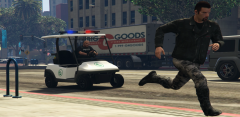 Hahahahahahahaha nice, how about a LSPD Mower?
 -
The few British cars in the game that we could make a police version, Jackal is already being worked, so these models could be a good idea IMO.
-