



RolandHUE
Members
-
Joined
-
Last visited
Everything posted by RolandHUE
-
-
-
I already fixed this, thanks for the tip.
-
 Maybe, i need to do some little fixes in the skin and make some tests :D
 -
-
-
 Nope
Nope -
Original graphics :D
-
Soon, now i'm working on Lundy's 1st Gen Stanier. After finish the car i need to make some minor fixes in all skins and the file will be available. Edit: It's done! :D
-
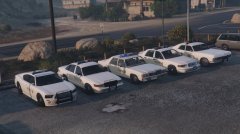
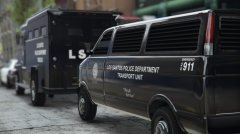
Using textures elements from the game and some stuff i made, i remade the LSPD fleet. Before release i just need some suggestions or opinions. Each vehicle has a variety of liveries: 1 for Transporter 2 for Stanier and Buffalo S 3 for Granger 4 for Interceptor and Buffalo I also get a better quality for the decals in the back. After this i will create something like it for LSSD.
-
-
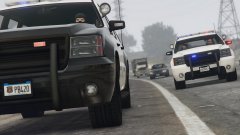 They're in a journey, a journey of Grangers!
 -
2/10 I didn't recognized what is it
-
-
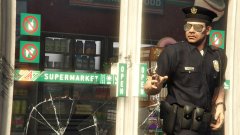 Is that hair on his head? :D
 -
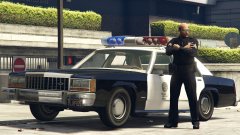 The best from the 80's!
 -
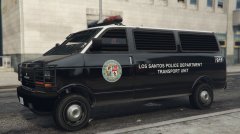 I'll give a try, if get better than Arial i will make a change.
 -
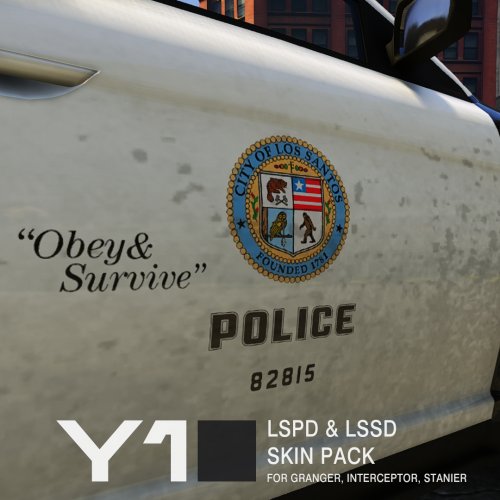 Nice, now LSPD could use the Granger with no problems, thanks for the fix and nice skins, mine looks like yours, soon i think i will upload my pack.
- 9 comments
- 4 reviews
-
-

- 1
-
-
-
-
-
-
-
-



.jpg.daa02401adca55fa16d5f28162703287.jpg)


