Private Messages for support are ignored. Please contact me using my Discord server.
Howdy partner!
My name is Scott, and I've been on LSPDFR for a short time though have developed items for FiveM previously.
I am new to LSPDFR Coding and coding in C# | So please take it easy on me 😃
I enjoy volunteering my time to help people both online and offline, so I am going to even offer my help here on LSPDFR forums and on my Discord server. If you ask me, I am still a beginner in coding LSPDFR though I can help you out as far as I can along with my extended knowledge of FiveM Lua files.
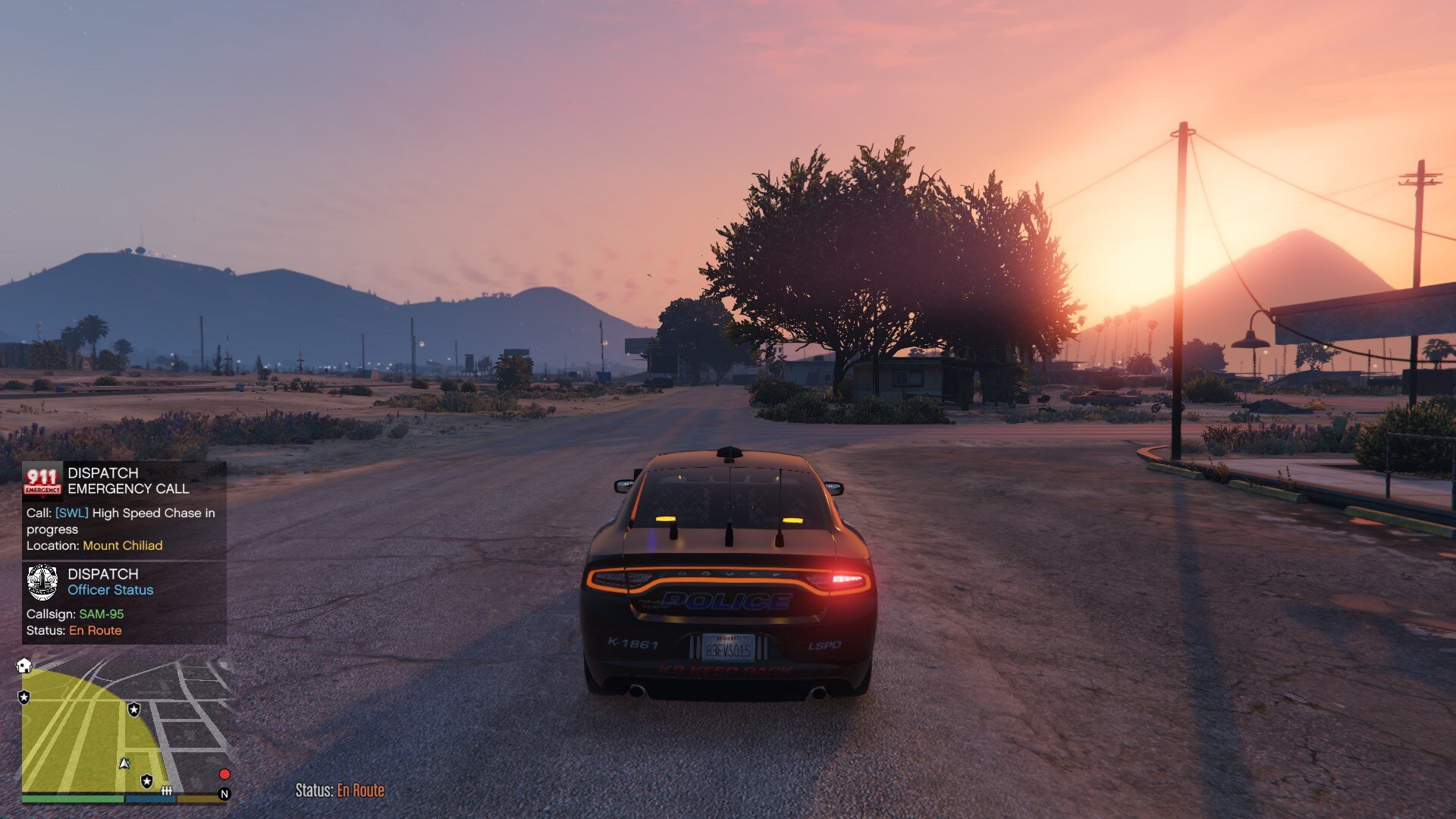
I've created multiple FiveM servers previously but finally released my first mod for LSPDFR and that is a callout pack called SWLCallouts, which is only new so please help by reporting any bugs you have to my discord so we can work on fixing the issues.
Another project of mine that I have yet to release is called 795 Events, instead of it being callouts, this has to do with ambient events. A huge thanks to all the people involved in making both SWLCallouts and 795 Events.
I am always open to helping you out so please do this either via my Discord server or Discord DMs. I do apologise in advance if I talk too much, or if I talk too straightforward. I can talk a lot. 😄
Self promote:
SWLCallouts | LSPDFR Callouts.
795 Events | LSPDFR Ambient Events.
SWL Creations | Owner. Discord support for all LSPDFR and FiveM needs, and help with my script releases.


_500x500.png.3dee876eb04964824f79e1f0e4046b1f.png)