




wolfrunner86
Members
-
Joined
-
Last visited
Everything posted by wolfrunner86
-
-
ELS-8 Suburban includes extra's for all red, all blue, and red blue plus ELS config's vehicles includes a wrap around as extra_10 Thanks to GTAxB0SS for the great screenshots back up original files, not responsible for any potential damage.
- 10 comments
- 4 reviews
-
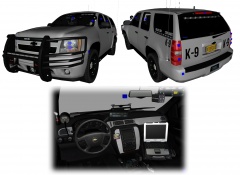 is that reverse light dummy in the bumper?
 released on another site now. will be here sometime next week
From the album: Wolfrunner IV
To be released soon. Screenshots by GTAxB0SS. More images Here http://imgur.com/a/j8pAP#0well in the U.S. they could use the national guard but the military proper is not aloud to be deployed in the U.S.els will only work with exsisting vehicles names and a few other that have been added there is a list in the files that come with elsor you can just drag and drop, that replaces the exsisting files.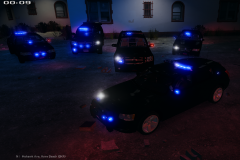
From the album: Wolfrunner IV
slowly making progresswith els 8 extra_10 spawns randomly so you can have some cars with it and some withoutit allows you to have differnt livery textures, so you could have different city/sheriff/state textures on 1 car. do you have notepadthe +livery lets you have multiple liverys. to open the vehicles.ide right click hit open with and choose any text editerok i just looked at it and the light bar is under extra_10 which means it is a random spawnis it released on a website can u give me a link so i can look at it.it could be that the light bar is an extra_10 is it a public release vehicle?Joy riding in my stolen lazerStargate5installing 1.0 and crashing at every callout


Account
Navigation
Search
Configure browser push notifications
Chrome (Android)
- Tap the lock icon next to the address bar.
- Tap Permissions → Notifications.
- Adjust your preference.
Chrome (Desktop)
- Click the padlock icon in the address bar.
- Select Site settings.
- Find Notifications and adjust your preference.
Safari (iOS 16.4+)
- Ensure the site is installed via Add to Home Screen.
- Open Settings App → Notifications.
- Find your app name and adjust your preference.
Safari (macOS)
- Go to Safari → Preferences.
- Click the Websites tab.
- Select Notifications in the sidebar.
- Find this website and adjust your preference.
Edge (Android)
- Tap the lock icon next to the address bar.
- Tap Permissions.
- Find Notifications and adjust your preference.
Edge (Desktop)
- Click the padlock icon in the address bar.
- Click Permissions for this site.
- Find Notifications and adjust your preference.
Firefox (Android)
- Go to Settings → Site permissions.
- Tap Notifications.
- Find this site in the list and adjust your preference.
Firefox (Desktop)
- Open Firefox Settings.
- Search for Notifications.
- Find this site in the list and adjust your preference.