
Beren
-
Joined
-
Last visited
Everything posted by Beren
-
From the album: El Burro Heights Police Department
-
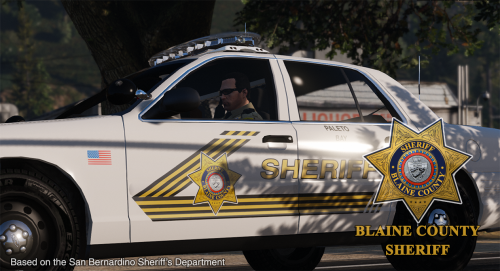 Yes, I'm making liveries using F554's CVPI for all three of my texture packs at the moment. I'm just taking a break to make time for homework stuff. But they will be released in the next update for all three of them.
- 32 comments
- 8 reviews
-
For links to the models used and the texture pack itself, go here And for the peds:
-
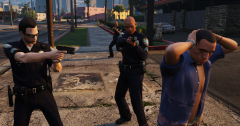
From the album: Del Perro Police Department
-
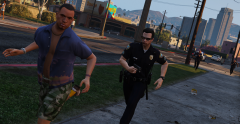
From the album: Del Perro Police Department
-
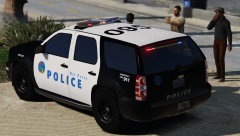
From the album: Del Perro Police Department
-
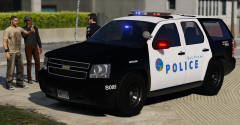
From the album: Del Perro Police Department
-
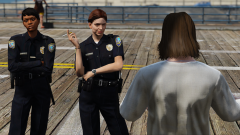
From the album: Del Perro Police Department
-
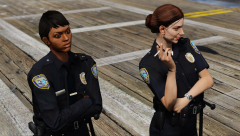
From the album: Del Perro Police Department
-
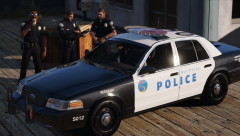
From the album: Del Perro Police Department
-
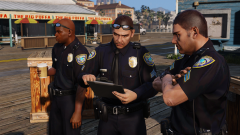
From the album: Del Perro Police Department
-
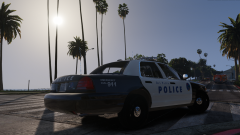
From the album: Del Perro Police Department
-
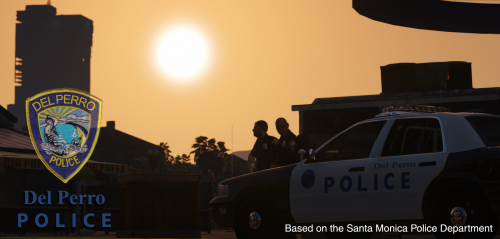 Liveries for the DPPD based on the Santa Monica Police Department --------------------------------------------------- The CVPI skins will work for both Bxbugs and F5544's CVPIs, which practically covers all of the CVPI available out there. I've recently added new CVPI liveries for the more up-to-date version. But I wholeheartedly recommend using Jedahdiah 's Santa Monica vehicle pack for more authenticity: Enjoy! --------------------------------------------------- To help complete the DPPD theme, grab the ped textures here:
- 1 comment
- 3 reviews
-
-

- 1
-
-
Popgroups and popcycle determines what car spawns and in what area in the game world. To modify which car spawns as dispatch against the player (when you gain stars), you'll want to check out dispatch.meta in update.rpf/common/data. If you want them as backup, just use LSPDFR's backup.xml or even the CustomBackup script if you want a more in depth backup system.
-
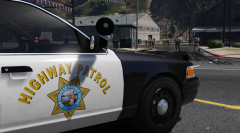 Not enough, if you ask me
 -
From the album: San Andreas Highway Patrol
-
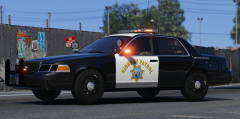
From the album: San Andreas Highway Patrol
-
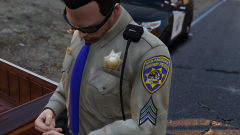
From the album: San Andreas Highway Patrol
-
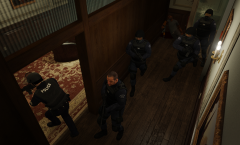
From the album: Los Santos Police Department
-
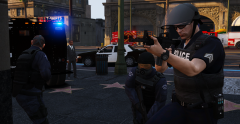
From the album: Los Santos Police Department
-
-
-
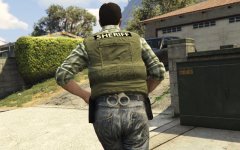 Love it.
 -
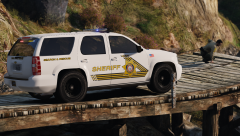
From the album: San Bernardino Sheriff based BCSO
-
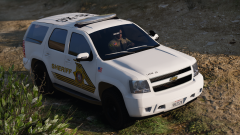
From the album: San Bernardino Sheriff based BCSO