
Ragnrok
Members
-
Joined
-
Last visited
Everything posted by Ragnrok
-
yea looks nice but please fix the grill lights on that cvpi. looks very strange. then ill download
- 25 comments
- 7 reviews
-
-

- 1
-
-
 oooo link? XD
 -
 neat makes me think NYPD "black beast" suvs
 -
 cool. also links to everything there please! XD thank you XD
 -
It's called holiday sale
-
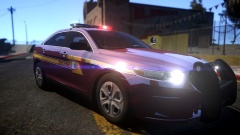 interesting choice of color. usually this would not work well, but youve made an exception
 -
Hahaha and try and hypnotize us with that neat avatar
-
what i mean is ill believe that promise when i see it on shelves. also, nice literal signature my friend
-
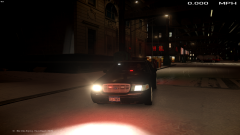 o ok. and i do see a few differences now that i watched the vid. may i suggest editing the els texture to include red/green in the front. similar the 2nd cvpi in this vid?
 -
yea ill believe that when i see it
-
all i know is God knows when gta v will come to pc. ill wait, but i almost dont even care anymore
-
i think it looks exactly like crossfire's existing one. just sayin
-
i think it looks exactly like crossfire's existing one. just sayin
-
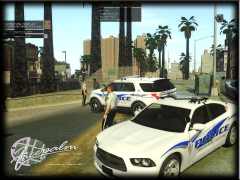 interesting skin
 -
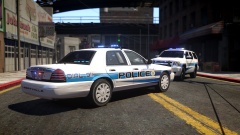 damnit its the valor one. i hate the valor
 -
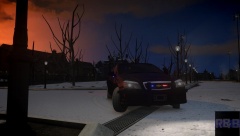 im not a huge fan of the caprice, just dont really like it. although this one is one would use
 -
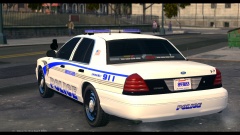 ok cool. i recommend going with the randomly spawning pushbar option.
 -
tried this out yesterday. very nice work man. best one by far (that actually works too haha)
- 30 comments
- 16 reviews
-
very interesting setup. will you be making one with no rambar. and will you be releasing this thing i assume?
-
what cvpi are you using here?
-
o yes
-
-
nice
-
yea thats a great thing to see this one is so f***ing funny. they are like wait....what?
-
Miss State Trooper skins would be awesome!