GlitchGamer
Members
-
Joined
-
Last visited
Everything posted by GlitchGamer
-
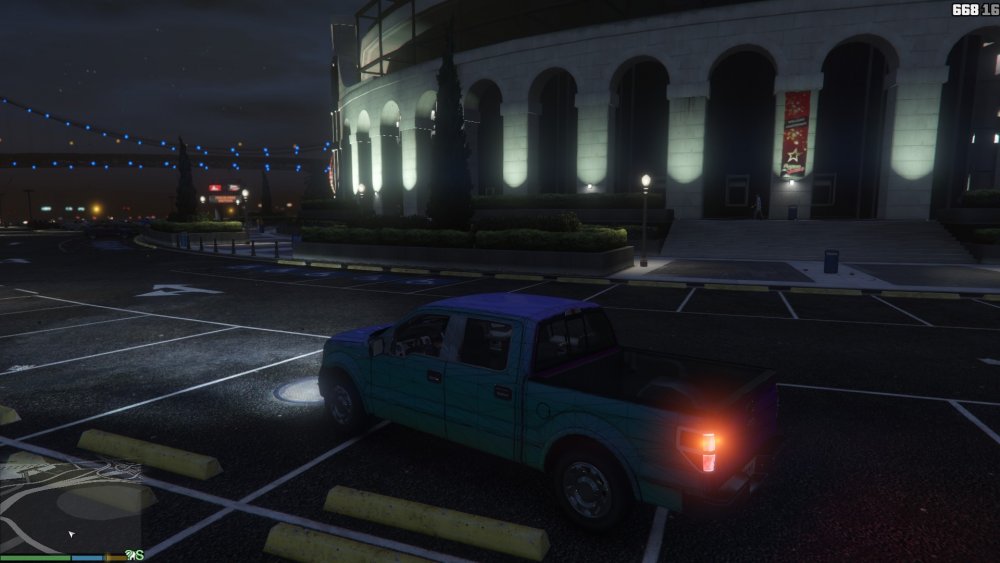
I don't know how to edit the paterns. Not yet. I'm hoping to figure it out. Cause I noticed at least the left side. I wish its at least be like the right.
-
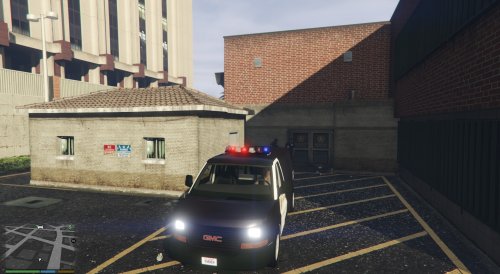 Do you have any visual mods installed? Do you have any similar issues with any other vehicles?
- 12 comments
- 4 reviews
-
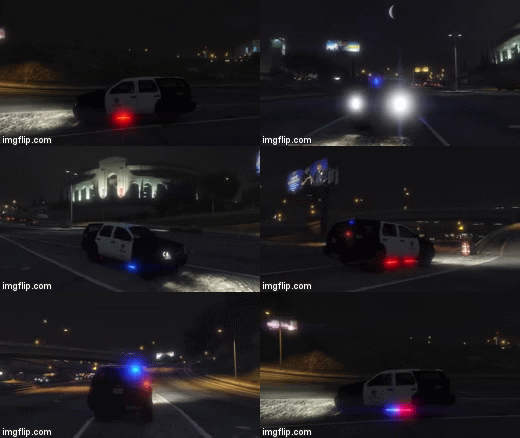
From the album: Nick's WIP
Tahoe w/ siderunners. I LOVE IT! -
-
Tell me what you think of it so far!!! :D
-
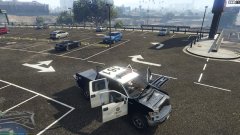
From the album: Nick's WIP
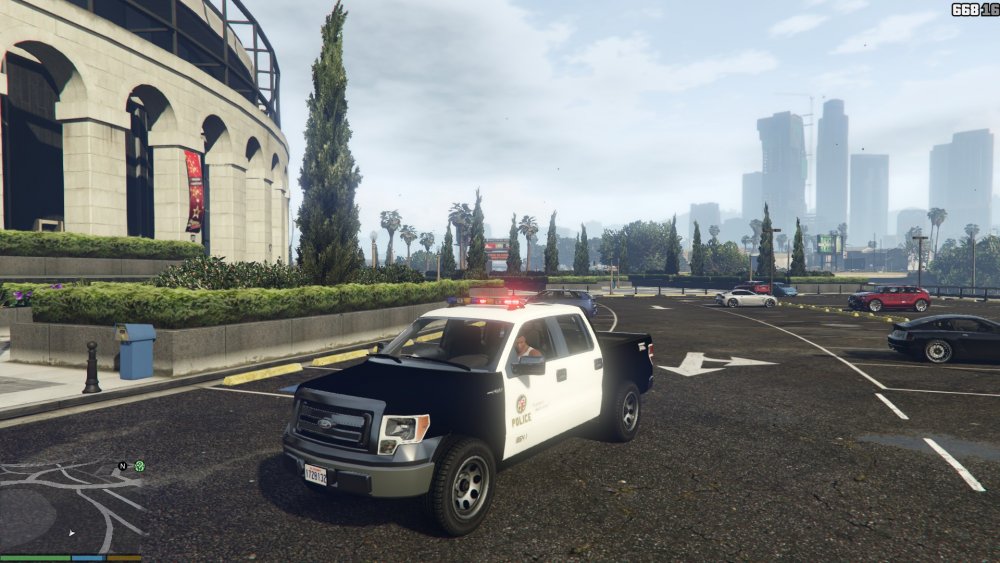
Police F150 -
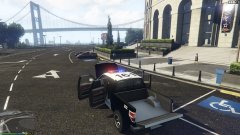
From the album: Nick's WIP
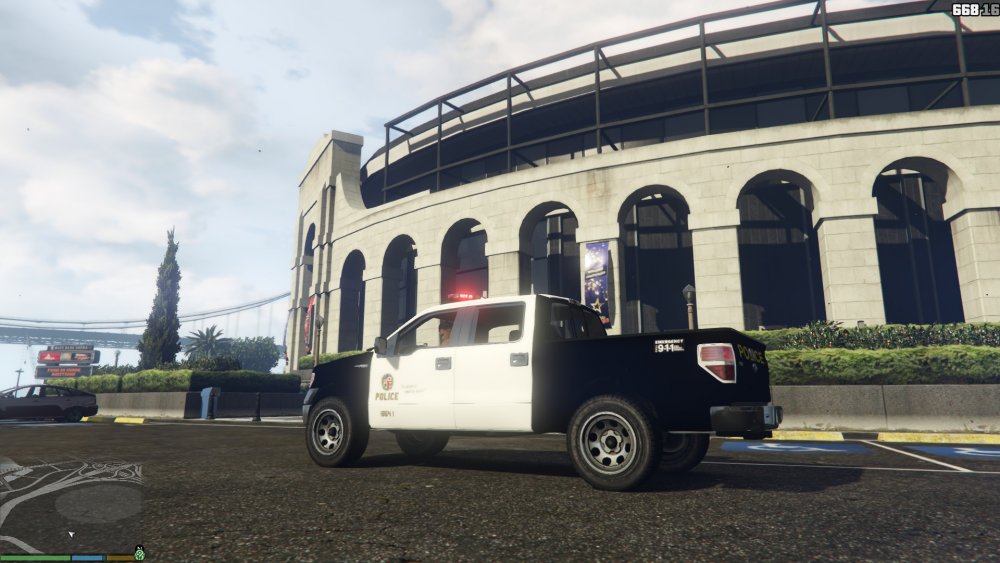
Police F150 -
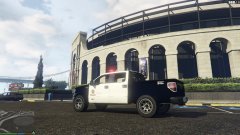
From the album: Nick's WIP
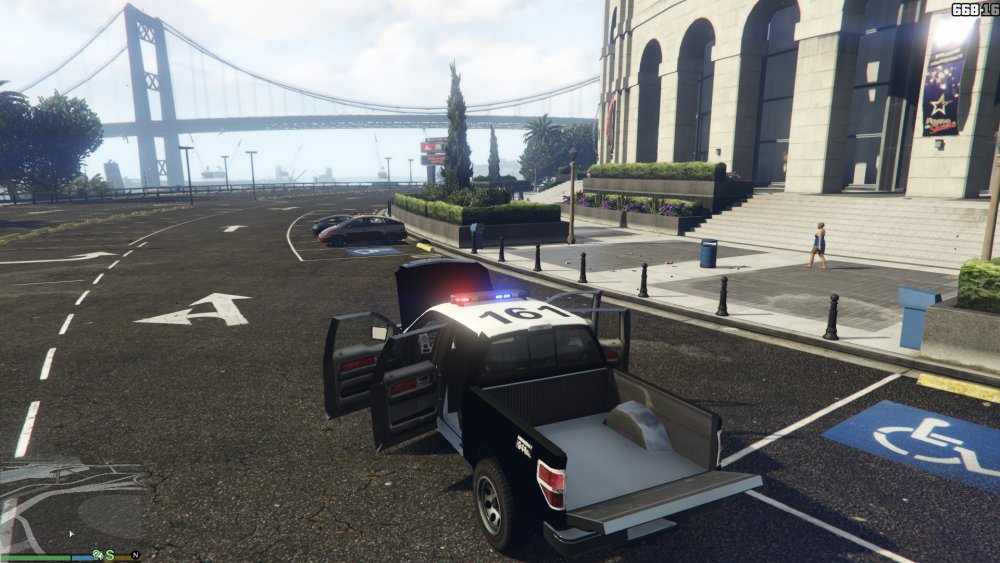
Police F150 -
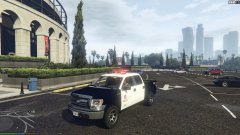
From the album: Nick's WIP
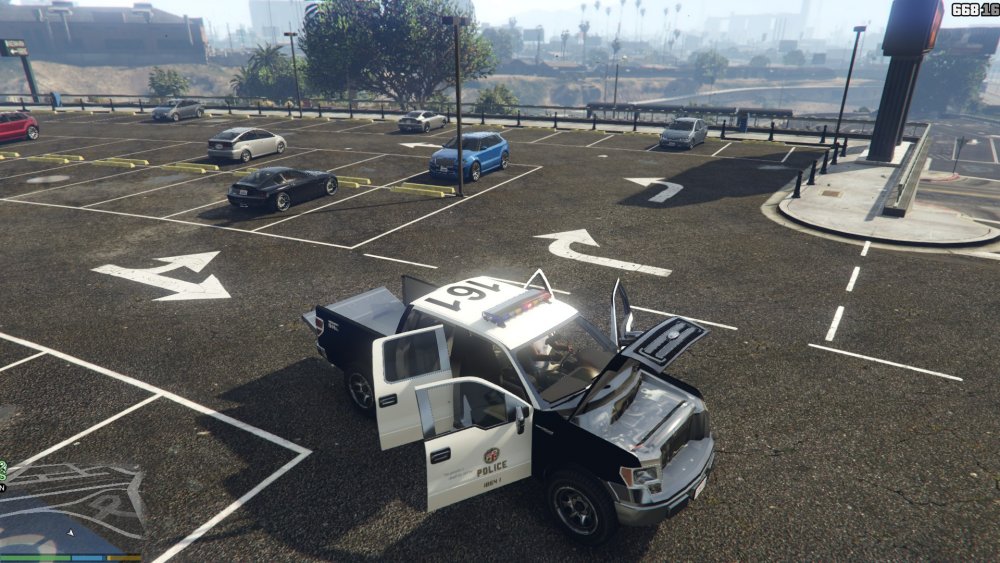
Police F150 -
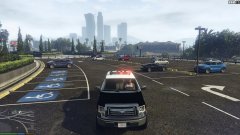
From the album: Nick's WIP
Police F150 -
:D Lightbar!
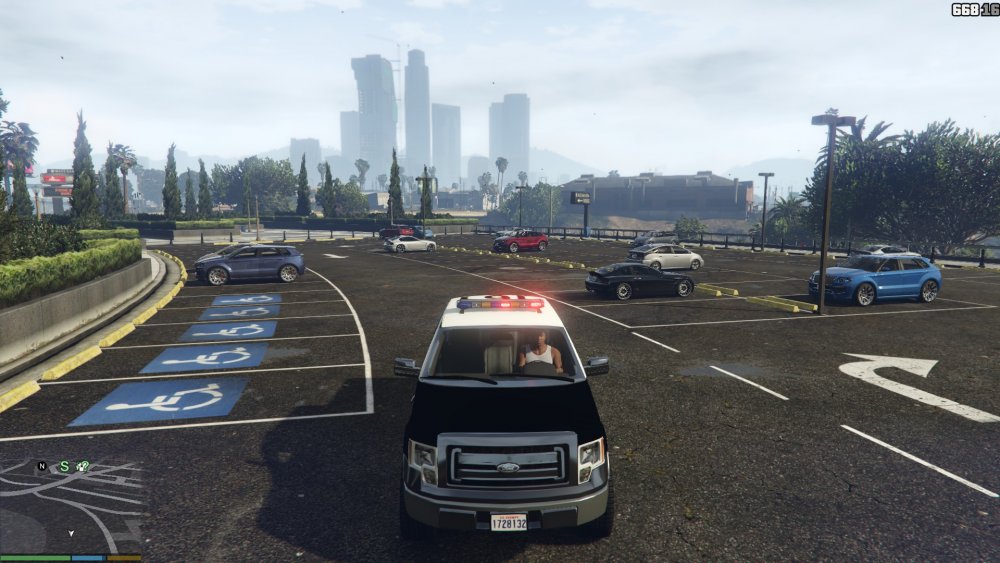
-
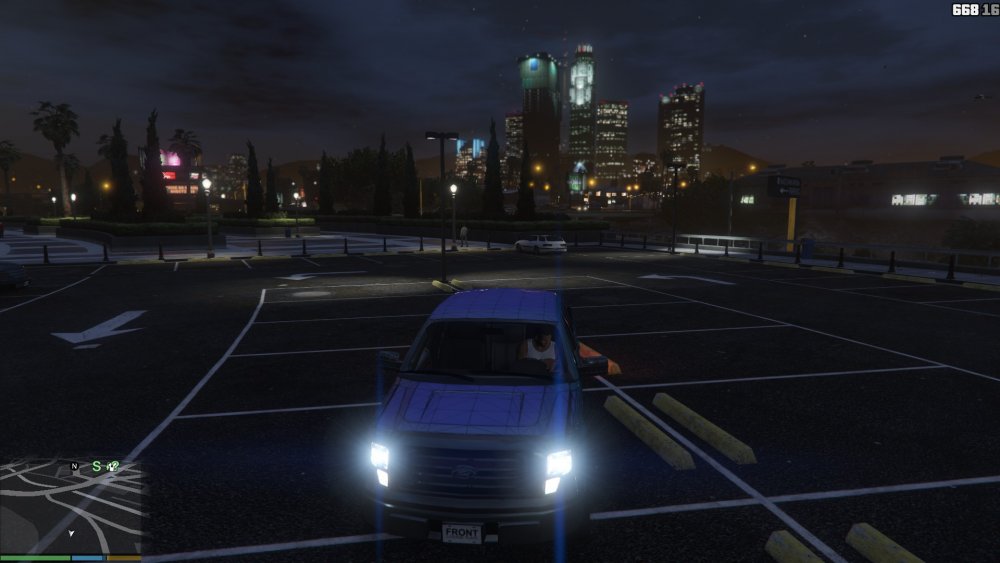
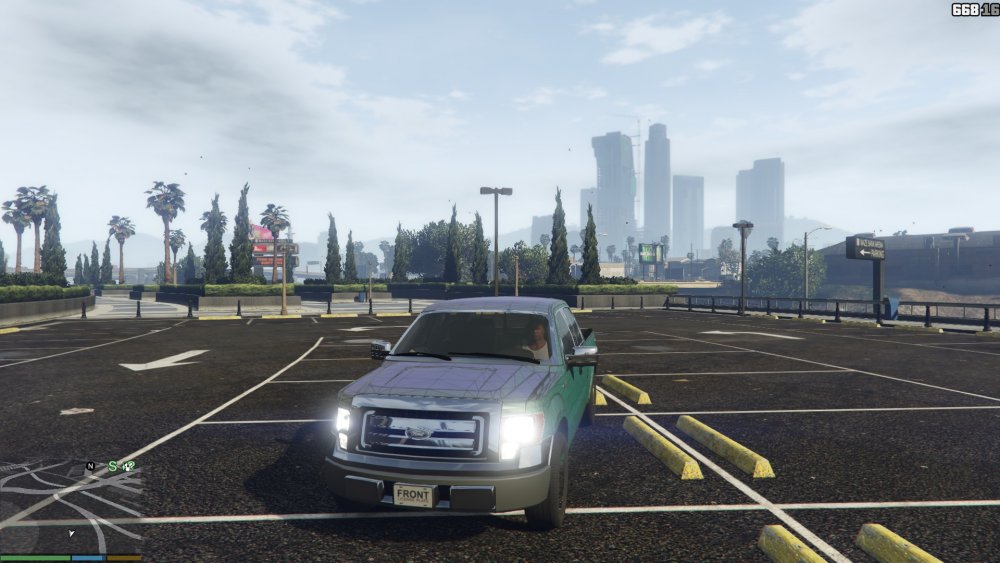
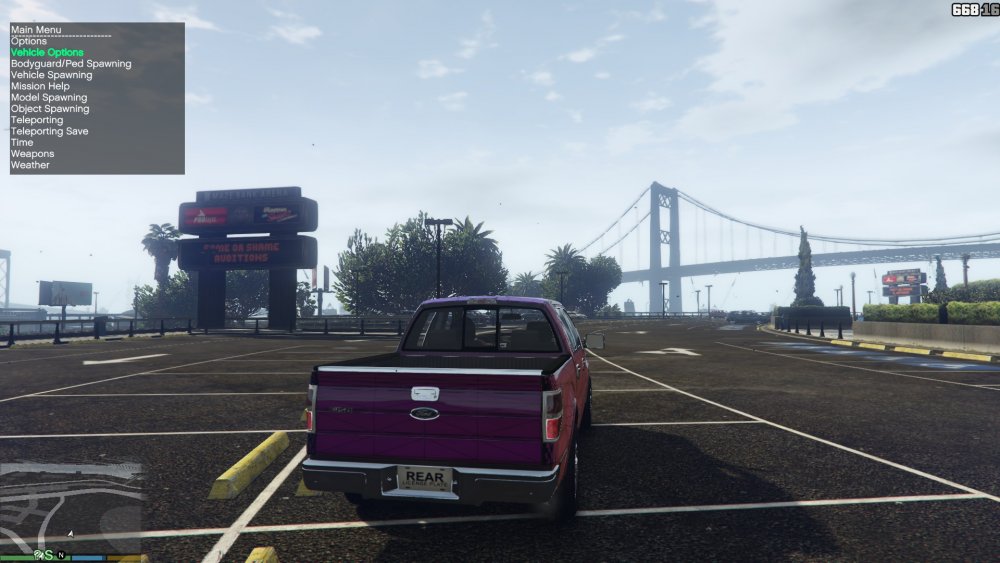
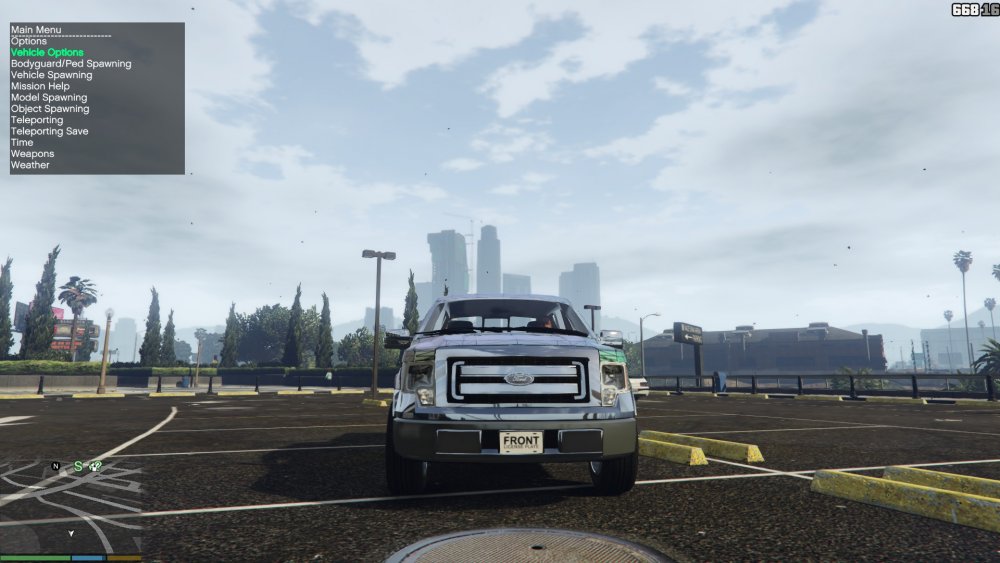
Is that an F150?
-
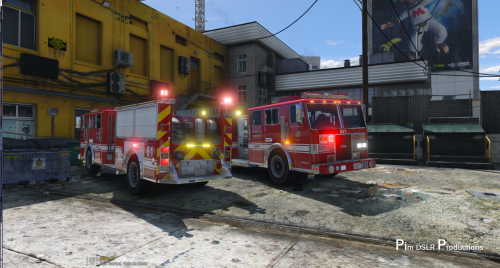 Very good work. I am glad to work with you and you help me out with models. You do an amazing job.
- 58 comments
- 20 reviews
-
-

- 1
-
-
-
Yup!
-
 Thanks lol.
 -
Thanks guys. I may cut them down to like 4 side runners on each side. The front and back are lacking.
-
I have undercover skins. I just took these as i was testing out my vehicle.
-
From the album: Nick's WIP
TAHOE SIDERUNNER -
From the album: Nick's WIP
TAHOE SIDERUNNER -
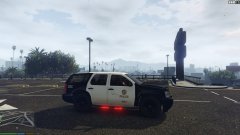
From the album: Nick's WIP
TAHOE SIDERUNNER -
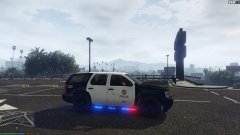
From the album: Nick's WIP
TAHOE SIDERUNNER -
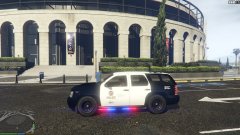
From the album: Nick's WIP
TAHOE SIDERUNNER -
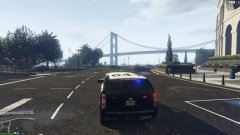
From the album: Nick's WIP
TAHOE SIDERUNNER -
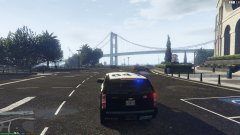
From the album: Nick's WIP
TAHOE SIDERUNNER