1997chevyboy
Members
-
Joined
-
Last visited
Everything posted by 1997chevyboy
-
I use Savior ENB -- ELS Friendly V3 '?do=embed' frameborder='0' data-embedContent>>
-
Or you can download the enb and use just the timecyclemodifiers out of it, which is 5 files.
-
I can send you mine if you want
-
Simple just change your timecyclemodifiers files to different ones! Located in PC then DATA
-
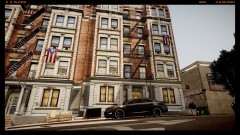 Sorry didnt think you would see the comment on the pic
 -
Nice pic, where can i find that taurus and if you know just PM me, THANKS
-
In your in game settings change these and see if it helps texture quality = high shadow quality = off night shadows = off reflection resolution = off water quality = low detail distance = 1 view distance = 1 vehicle density = 20 and turn clip capture off in the game settings If i helped you please hit the GREEN arrow on my post. THANKS
-
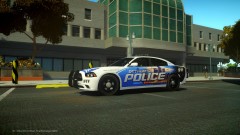 Yeah i know but not much its fairly easy if you get a good quality pic
 -
Well not bad for copy and paste!!
-
HMM looks alot like this one that is already made
-
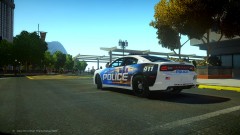 not bad but HMMM looks the same, just copy and paste!!!
 -
GREAT job guys hope it carries over to GTA V . Also some new treats this month, cant wait to see what they will be. Only 11 days left this month!!!!
-
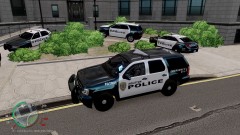
From the album: Houston Police
-
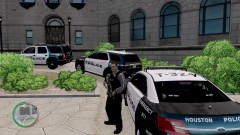
From the album: Houston Police
-
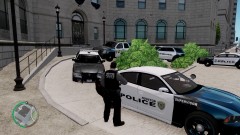
From the album: Houston Police
-
-
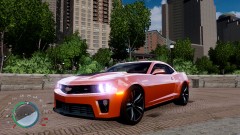
From the album: Houston Police
-
-
-
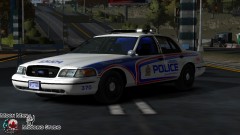 Awesome skin and music once again 5/5
 -
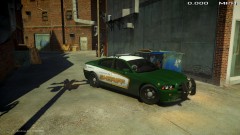 Is the lightbar remaped, or is it the same as the 2010 charger?
 -
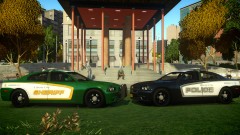 Just flat out a great ENB and chargers.
 -
Awesome pic, is this charger going to be released?
-
-
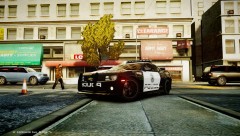 Yeah thats what he told me lol, but i found it thanks.