
RayJGamer
Members
-
Joined
-
Last visited
Everything posted by RayJGamer
-
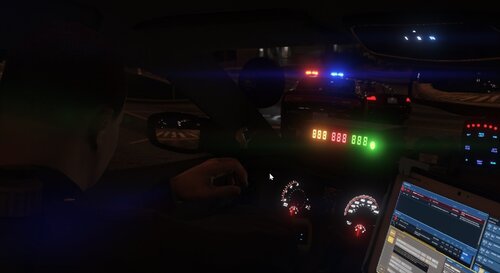 Not sure why, however, If I am sitting in my vehicle with stage 3 lighting, on a traffic stop, backup arrive with lights on, but turns them off when the backup unit exits the vehicle
- 394 comments
- 30 reviews
-
-

- 1
-
-
-
 So after playing more with this, I'm noticing its hit or miss. Sometimes it works, more times it doesn't.
 -
Great addition to any LSPDFR gamer. Much needed and appreciated! I recommend this for scene management or to clean up "large" incidents!
-
From my understanding, All that aren't naturally in the base game, models like BCSO, LSIA PD, ETC
-
Thanks for all the responses @LMS, @Mauvzel, @Ahmed4696, This would make great public knowledge. The problem is caused by Its in the description of the file that some models selected will trigger issues. I have tested without using those models and all is working fine.
-
Unfortunately , I never installed callout manager. The problems seems to happen when I try to run plates with Police Smart Radio.
-
When in-game, with LSPDFR and other plugins loaded, I can't use any LSPDFR native features. I can't pullover vehicles or anything. It almost like LSPDFR is not recognizing me as a cop. My other plugins work perfectly. I'm about to use Albo stuff as well as bejoljo. The plugins identify me as a cop while LSPDFR isn't. Log posted below. RagePluginHook.log
-
-
-
-
-
 I've noticed significant better performance with this version of computer plus 🙂 Although the last version worked greatly for me also. I'm able to use Entity Persistence with this version in a much more stable way. Question, how difficult would it be to have the passengers ID auto populate inside computer+ the same way the driver ID does. I also would assume its a matter of which plugin is pulling the initial ID. The only two that I know of that ask for passengers ID are Interactions+ and LSPDFR+. Great update.
- 1,743 comments
- 172 reviews
-
-
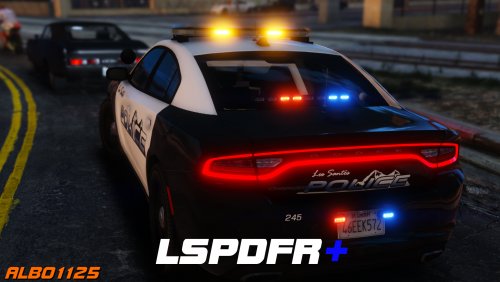 I just discovered this mods breaks the AI. When Enhanced Pursuit AI is enabled, AI backup WILL NOT pursue suspects on foot. Instead, the will drive in circles or sit still in their vehicles. I've tested this issue for over an hour and my results are conclusive. When its disabled, the AI WILL pursue suspects on foot when called for backup. The issue is, when its turned off, the AI drive like sheer idiots. Can this be fixed or whats a working workaround ?
- 1,178 comments
- 137 reviews
-
I'm going to ask for permission to send you an older version and see if that helps anyone.
- 1,743 comments
- 172 reviews
-
-
- 3
-
-
-
Ok interesting. What are your computer specs? what are your computer specs?
- 1,743 comments
- 172 reviews
-
I have found success with leaving the default computer screen up. Basically leaving it on the computer background and not the GTA Environment and leaving the game paused while using.
- 1,743 comments
- 172 reviews
-
Have you tried using a different gameconfig?
-
-
Have y'all tried disabling some of the options ? And is everything fully updated?
- 1,743 comments
- 172 reviews
If I'm not mistaken , this is referring to any walking ped. For example, yesterday while I was palying, I saw two "shady" guys I wanted to check out. When I pulled up, they walked away. I use the stop feature and obtained their ID. One of them were publicly intoxicated so I went to computer+ ran his name, and issued him a ticket for public intoxication. Hopefully that help some.