NascarTeen14
Members
-
Joined
-
Last visited
Everything posted by NascarTeen14
-
I install all of them in the plugin file
-
Nope no crash issues I just can’t get them to work
-
I’m struggling to get add-one to work on my lspdfr game and I don’t know why
-
got it to work i just need help installing add ons to my game
-
yeah all anti virus software is disabled
-
Yeah it was working fine yesterday but not it’s not working
-
Already did that and I’m still having issues
-
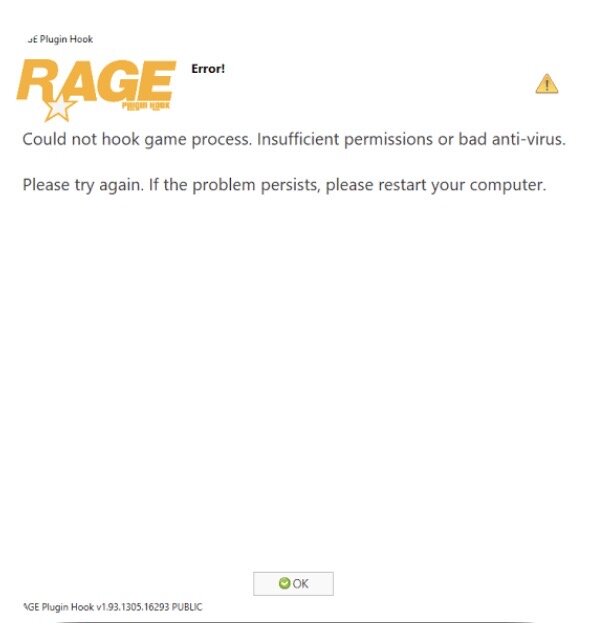
This is the error
-
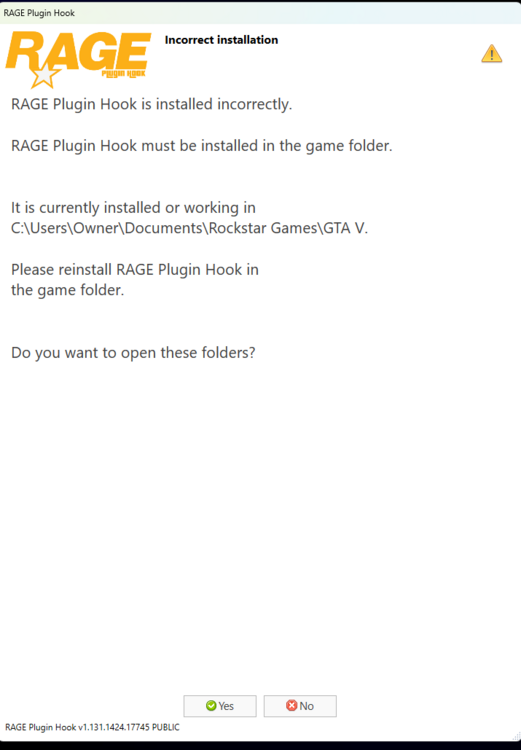
Now it’s showing up with this Whoops wrong pic
-
yeah that
-
got my game to work where would i put add ons or stuff i download like what folder
-
right now i have all files in the gta 5 folder do i just need to move everything related to RPH to the file path mentioned.? it also says the game folder the gta 5 is the game folder is what i though
-
im still having the same issue should i like try and like uninstall and reinstall gta 5.?
-
now it says this Should I put it on my legacy copy of gta 5
-
every time i try to launch the rage plug in it says this