Truthless
Members
-
Joined
-
Last visited
Files posted by Truthless
-
Living Los Santos
Living Los Santos makes Los Santos feel more alive by dynamically adjusting traffic, pedestrians, parked vehicles, and ambient world activity throughout the day. It also introduces Dynamic Car Meets, bringing themed gatherings of customized vehicles and spectators to locations across Los Santos and Blaine County.
Instead of having the same density everywhere at all times, Living Los Santos creates realistic changes based on in-game time, weather, and location, while Car Meets add unique nighttime events that make the world feel active and lived in.
You can customize the settings to however you'd like.
Features:
Dynamic Car Meets
Random themed car meets at night
Sports Car Meets
Muscle Car Meets
Luxury Car Meets
JDM Nights
Supercar Meets
Classic Car Meets
Multiple Car Meet Locations
LS Customs
Maze Bank Arena
Sandy Shores Airfield.
Car Meet Activities
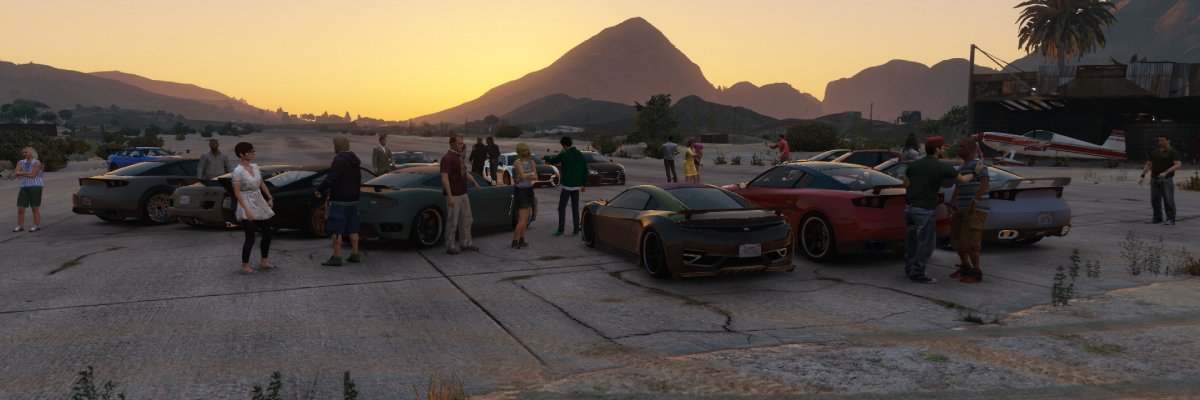
Car owners gather around their vehicles
Small groups of NPCs interact with each other
Spectators attend meets
Randomized vehicle tuning and modifications
Randomized vehicle colors and styling
Meets naturally end around 3 AM as attendees leave
Dynamic World Density
Morning rush hour traffic
Evening rush hour traffic
Quiet late-night streets
Dynamic pedestrian density
Dynamic parked vehicle density
Weather-Based Density Changes
Rain and thunderstorms reduce pedestrian activity
Vehicle traffic adjusts dynamically during bad weather
Nightlife Zones
Popular nightlife areas remain active after dark
Downtown Vinewood receives increased activity during the evening
Customization
Fully customizable .ini file
Adjustable density multipliers
Adjustable car meet settings
Adjustable spawn chances and limits
Performance
Lightweight
Performance-friendly
Designed to run seamlessly alongside other plugins
Examples:
LS Customs parking lot filled with Supercars and spectators, ending around 3 AM.
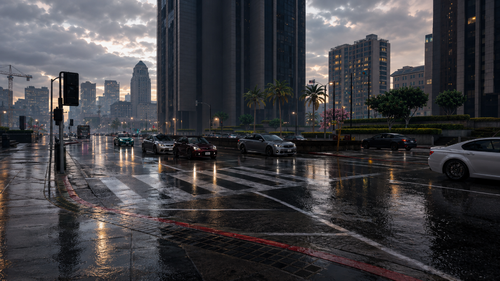
Roads becomes busier during rush hour.
Streets become noticeably quieter late at night.
Bad weather such as rain and thunder reduces pedestrian density and slightly increases vehicle traffic.
Nightlife zones like Downtown Vinewood remain active while the rest of the city quiets down.
Requirements:
RagePluginHook
Installation:
Place Living Los Santos.dll into your GTA V\Plugins folder.
Place Living Los Santos.ini into your GTA V\Plugins folder.
Launch GTA V through RagePluginHook.
Open the RagePluginHook console (F4 by default).
Type: "LoadPlugin Living Los Santos.dll"
Configuration:
All settings can be customized through Living Los Santos.ini
Default Debug Key: F10
The weather multiplier works like this:
Weather multipliers are applied on top of the current density values.
Example:
PedMultiplier=1.25
RainPedMultiplier=0.50
Result:
1.25 × 0.50 = 0.625
The final pedestrian density during rain would then be 0.625x.
This applies to all other density values too.
Made by Truthless
Feedback, suggestions and balancing recommendations are always welcome.
If you like what I do and would like to support me and my work, you can support me here:
https://buymeacoffee.com/truthlessmods
https://ko-fi.com/truthlessmods- 6,022 Downloads
- 20 Comments
Updated -
SBS - Suspicious Behavior System
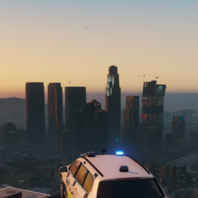
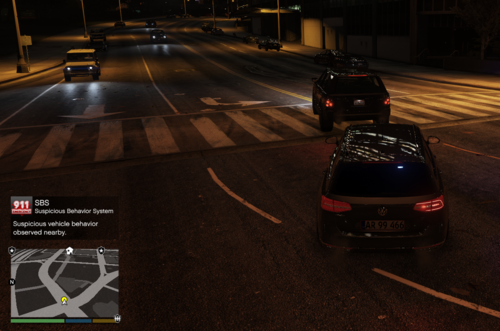
SBS (Suspicious Behavior System) enhances routine patrol gameplay by introducing subtle suspicious behaviors among nearby pedestrians and vehicles.
Unlike traditional callout plugins, SBS does not spawn crimes, shootouts, or scripted events. Instead, it creates organic moments that encourage investigation and officer discretion during normal patrols.
A nervous driver suddenly accelerates. A vehicle appears to avoid police presence. A pedestrian changes direction when spotting an officer. These behaviors may indicate criminal activity or they may be completely innocent. The choice to investigate is yours.
Features
Suspicious Vehicle Behavior
Optional suspicious pedestrian behavior
Area-based suspicion multipliers
Dynamic map blips for suspicious entities
Customizable settings through SBS.ini
Configurable keybinds
Lightweight and performance-friendly
Designed for routine patrol gameplay
Compatible with LSPDFR and RagePluginHook
Examples of Suspicious Behavior
Drivers speeding up unexpectedly
Vehicles attempting to avoid police presence
Pedestrians acting nervously or fleeing
Increased suspicious activity in high-crime areas
Configuration
SBS includes a customizable configuration file allowing you to adjust:
Debug keybind
Vehicle and pedestrian behavior
Scan intervals
Notification cooldowns
Blip durations
Area suspicion multipliers
Maximum suspicious entities per scan
Requirements
RagePluginHook
LSPDFR (recommended)
Installation
Place SBS.dll into your GTA V\Plugins folder
Place SBS.ini into your GTA V\Plugins folder
Known Limitations:
SBS creates suspicious behavior, not crimes.
Some flagged vehicles or pedestrians may be completely innocent.
Intended to encourage investigation rather than guarantee criminal activity.
Made by Truthless.- 1,134 Downloads
Updated