
eric35
Members
-
Joined
-
Last visited
Everything posted by eric35
-
Ah sorry didn't see his other posts. My solution is to test the game from basic. So it like first play the game with no modded cars (restore the very original vehicle img). Then add one, if it crashes, change a different car and so on?
-
I would guess that you have tried 'run as administrator'?
-
Is there any message that pops up after your game crashed? Or is it just saying something like 'GTAIV is not responding'?
-
Does your game crashes when you leave the area around your safe house? If yes, then move your cars out of the parking slot of your safe house. Then go back into the safe house and overwrite your save. Once you've done that you must load that save. Yes you will not have those cars again until you find them, but that's the way to fix this crash. If no, try restoring the vehicle.image file back to the very original one, then start replacing vehicles again. Make sure the cars that you are modding is not in the safe house parking slot otherwise it will crash because the game is trying to load the previous settings for that car.
-
Restore your original files (ie, [gta.dat],[images.txt.],[paths.img],[radar.img]). Then the next thing is to paste those files from the download to the GTA installed directory to the correct place (I assume you can read the read me file in the download). Make sure you are logged on as administrator when you turned on your computer. Once you have installed the map mod, start the game by using 'Run as administrator'
-
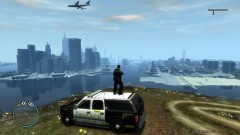
From the album: Radoms
Clockwork Mountain Mod was used to create this shot. -
A mixture of screenshots
-
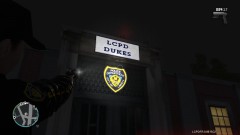
From the album: Radoms
LCPD open 24 hours, 7 days a week -
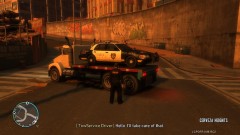
From the album: Radoms
Yeah thank you! Now I gotta walk... -
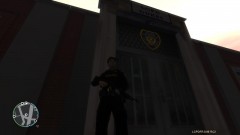
From the album: Going on duty
Duty time -
The album of every time when I start my shift!
-
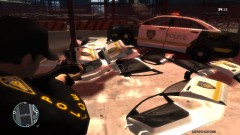
From the album: Radoms
The fun you can have with ELS vehicles while it has ELS turned on! -
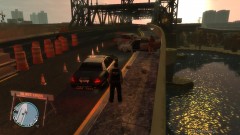
From the album: Game play
Traffic accident... -
All screenshots during duty
-
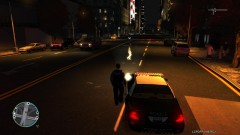
From the album: Game play
Time to arrest this guy -
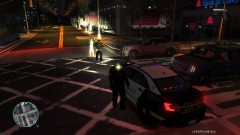
From the album: Game play
You are in the spotlight! -
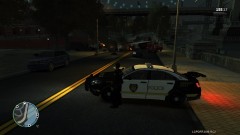
From the album: Game play
cars are on fire and exploding -
-
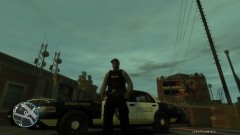
From the album: Going on duty
Wasn't meant to upload this shot but...can't seem to remove it. lol -
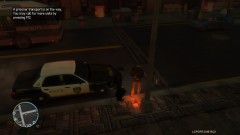
From the album: Game play
That's a nice weapon you got there -
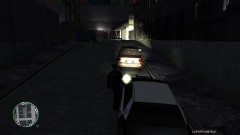
From the album: Game play
Sometimes you just gotta love the spotlight script -
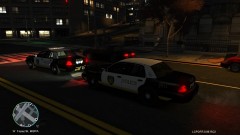
From the album: Game play
a patrol CVPI and an interceptor CVPI -
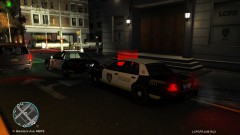
From the album: Game play
a patrol CVPI and an strike CVPI -
-
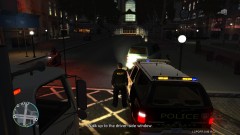
From the album: Game play
Had to pull him over because he ran a red!