


Firmtry
Members
-
Joined
-
Last visited
Everything posted by Firmtry
-
maybe install this
-
sadly thats just the way it is, or im wrong
-
which video is it?
-
can you show me a picture?
-
i think the sus vehicle and drunk driver i think thats for like events if you want to pull them over i mean the vehicle blips don't really matter do they?
-
get gameconfig if you havent and pack adjuster and heap adjuster
-
this is lspdfr support only not lcpdfr
-
install gameconfig if you havent
-
 it just needs more questions ik it got released like 3 weeks ago but incase im still using STB & UB for now
- 625 comments
- 48 reviews
-
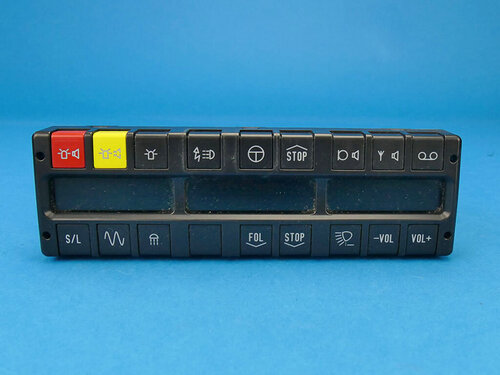 european ahh siren
 -
-
i have never come across this but i have been receiving this black screen. while it says "loading lspdfr" i tried to find a solution to many topics but it does not work I mean 1 topic said rage native ui was the problem it worked but now, i have a black screen pop up again and I saw a unload plugins notification during the black screen, and i figure that was the problem but im still not sure so can anymore help me? btw I have my gameconfig and all the gta 5 essentials that i need
-
get gameconfig heap adjuster and packfile adjuster
-
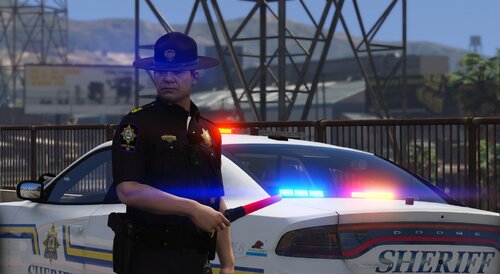 wait also what the is jbib 3 for? theres no jbib 3? in the ytd
 -
where do i place the head diff?
-
-
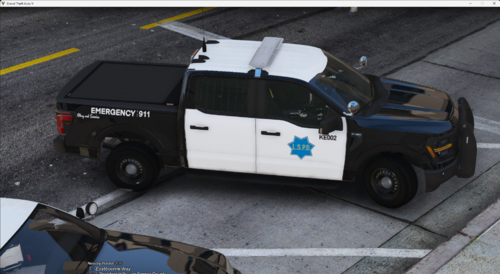 bro u posted this mod in the gta 4 category this mod is supposedly for gta 5 category
 -
-
 if you were playing retro classic liberty city or sum other city then ig this would fit if you wanted it




.thumb.png.bab083d71595b3f66ab59584b9b64d55.png)

