
Illinois Designs
Members
-
Joined
-
Last visited
Everything posted by Illinois Designs
-
-
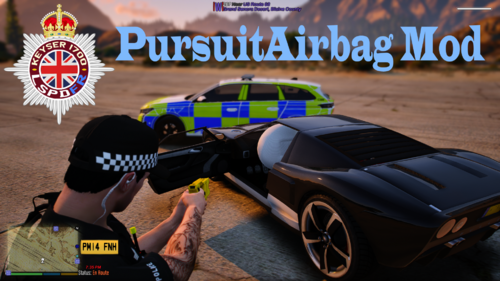 can u make it where it honks 3 times after a crash? like fords Post Crash Alert
- 48 comments
- 2 reviews
-
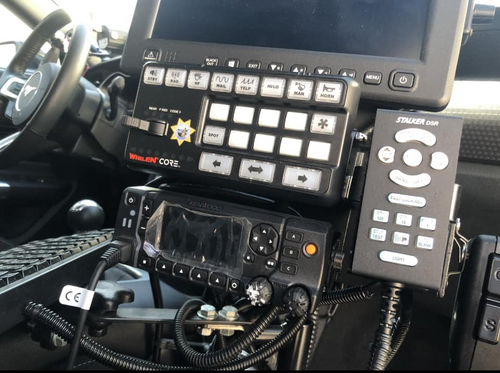 not even almost. its just the default cencom tones for the new
 -
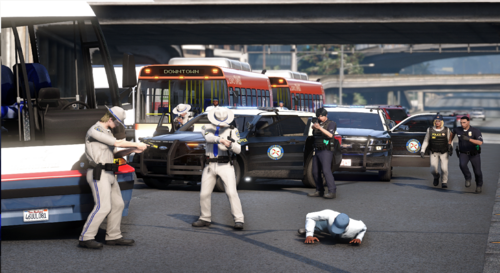 this is amazing coming from a orlando born and resident
 -
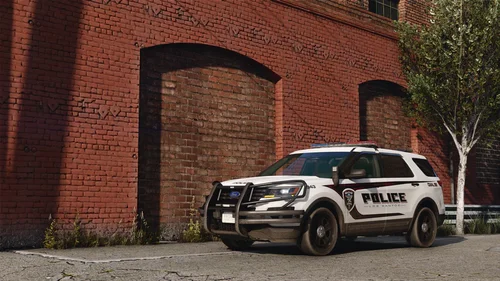 can you make it where it activates a extra or two when u brake? as a option
 -
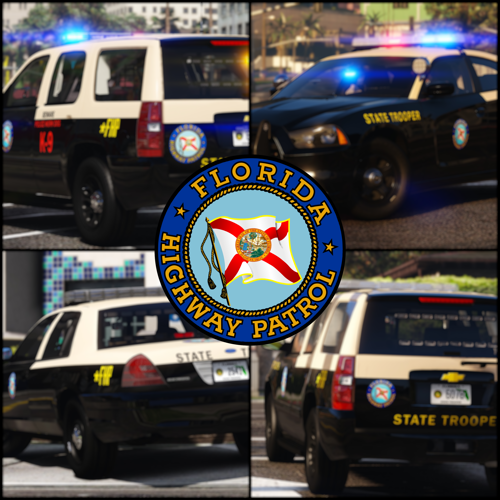 works just fine for me. im using corefx and brighter els by MSTB with the bright option so that might be why
- 300 comments
- 22 reviews
-
 yeah maybe fhp is the ones not being spec
 -
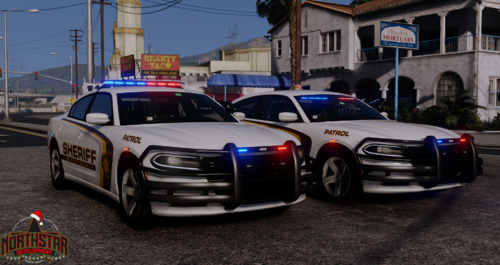 someone in northstars discord made it els
 -
-
this also works for ulc vehicles with blank els xmls. it toggles the extras for them
-
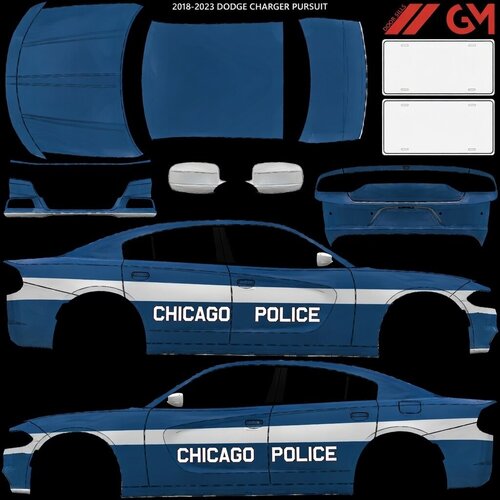 Features a CMPD skin
 -
-
i think just copy "[HelloWorld] ParkedExtras = 3,4 DrivingExtras = 1" for each vehicle yes
-
replace helloworld with model name
-
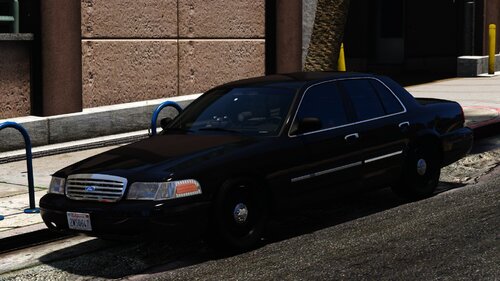 its already "els" just get a els and rename it to the model name
 -
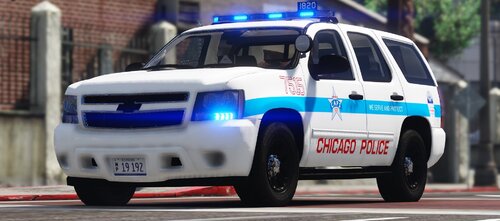 sorry for asking so much questions since i live in naperville but any plans on a release date? i got your isp stuff too its amazing even without the k9 cars
- 125 comments
- 14 reviews
-
I Fixed it. by making the car ice white in trainer cook county does the same also when will the explorers come back?
- 125 comments
- 14 reviews
-
-

- 1
-
-
-
-
oh well. didnt work extra 2 is my drive extra 5 is my park i removed the els xml
-
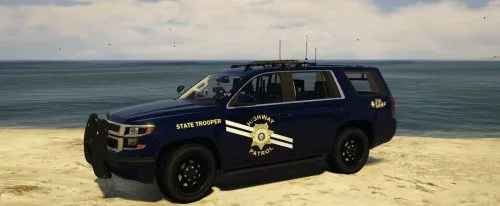 is it just their blue colors
 -
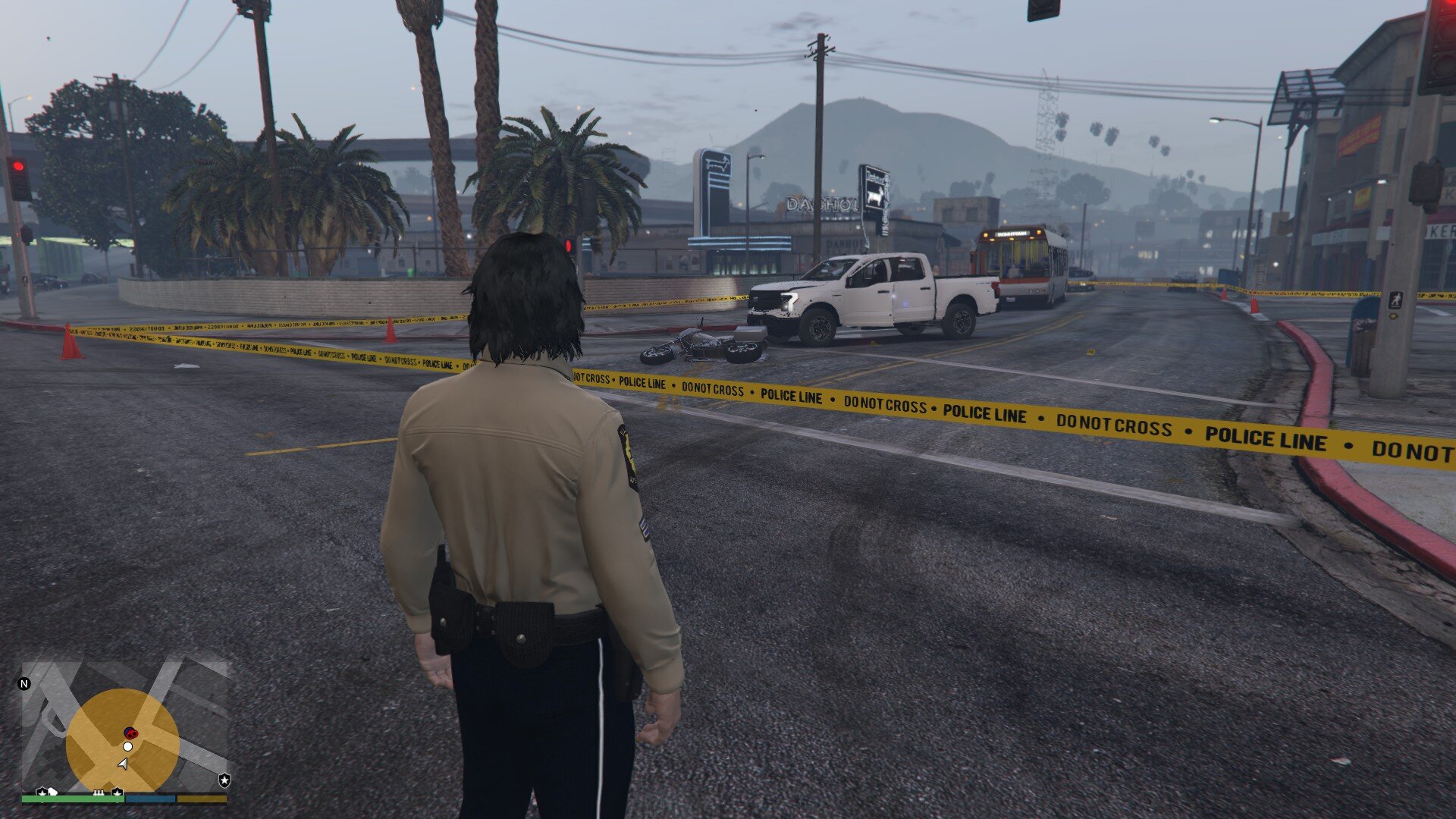
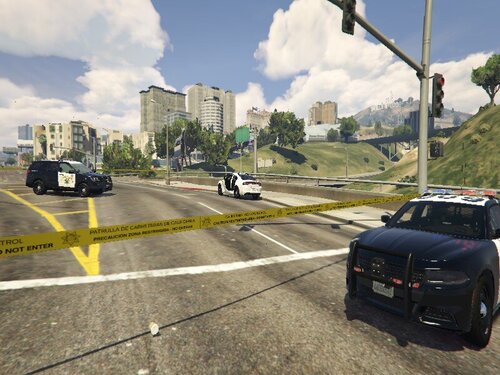 can i use the police tape beta since im a benefactor for pnwparks?
 -
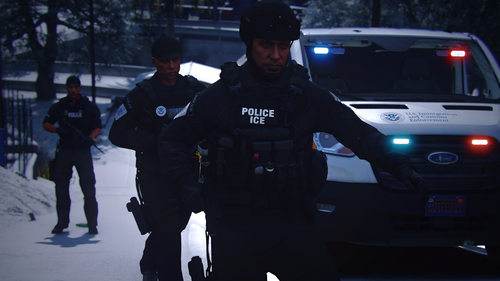 this is a great mod. i use the transit for my fbi swat
 -
-