flooent
Members
-
Joined
-
Last visited
Everything posted by flooent
-
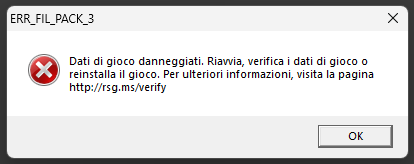
The activation issue has randomly fixed itself, but I was still having the going on duty issue so I did some digging and found out my 'dlcpacks' folder was the issue. So, I decided to clean it up and gradually reinstall everything to see what was causing the initial crash. However, for some absurd reason, when I add a vehicle pack that ran perfectly fine before, I get a popup saying that my game files are corrupted while starting up the game. Here's my log: RagePluginHook.log Also, the addon vehicle pack causing the issue is Lapd code 3's California 3 in 1 police pack (https://modification-universe.com/forums/resources/els-california-3-in-1-police-pack.1475/). As I said before, this pack worked flawlessly before me cleaning up my dlcpacks folder. Lastly, here's a screenshot of the popup error I get (written in Italian because of my system language).
-
Hi. This is the second topic I post on this issue. Since I didn't get much help on the other one, I thought of doing another one. My issue is still the same as described in my previous topic {here is the link to that}. Another thing I've tried more recently is installing a clean copy of LSPDFR without any plugins or anything, but my LSPDFR crashes as soon as I try to go on duty.
-
UPDATE: I haven't touched GTAV for the past 2 days, however yesterday i decided to boot it up to see if the problem magically fixed itself (which happened to me once). Once booting LSPDFR up, I'm greeted with a black screen saying "Activation required" and the game prompts me to insert an activation code (note: I have bought GTAV on the Steam store and I never had this issue).
-
Yeah, I had it turned on. Tried to turn it off (both in the LSPDFR.ini and the StopThePed.ini), but that did not change anything and I am still getting the issue.
-
Yeah, that doesn't solve the issue. I have tried putting in the command before and after typing 'forceduty', but it still gives the same error. Weird thing is, when I do the 'giveweapon WEAPON_FLASHLIGHT' command I don't actually receive a flashlight in my inventory. I've also tried using LSPDFR's 'GiveMeFlashlight' command, but it just spits out another 'unhandled exception' error. I have linked screenshots of the console output both for the 'giveweapon' command (the first screenshot) and the 'givemeflashlight' command (the second screenshot). [ side note: I also tried removing the flashlight out of my StopThePed inventory but, obviously, it didn't do anything because the game wasn't working even without any plugins installed ]. Here are the screenshots:


-
Alright, I'll try tomorrow (I live in a different time zone).
-
Hello, this is my first topic that I post. When I try to do the 'forceduty' command I am greeted with an error that says 'unhandled exception'. I will attach a screenshot of my console below. Even if I try to go on duty by going to a police station, my LSPDFR crashes as soon as i click the 'go on duty' button. I would like to say in advance that I already have a character and that I already tried removing all my plugins, but it won't change anything (which is weird, because I started getting this issue after installing two plugins alongside LSPDFR enhanced so I thought that removing all my plugins would fix it). Please help!

-
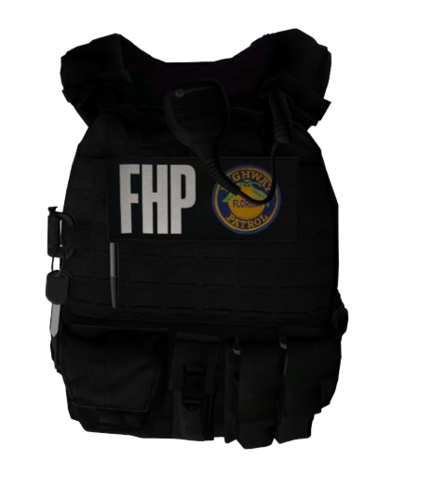 where do you install this? nevermind, i guess i was too lazy to read the installation file