



mar805cus
Members
-
Joined
-
Last visited
Everything posted by mar805cus
-
If this gonna be work, i will be happy if u vote me using a like ! ;=) Hope it's going to work
-
[10/12/2024 9:21:46 PM.153] Failed to retrieve D3D call in reasonable time, changing hooking mode Sure about a script or plugin problem, just save all the plugin and script, in another folder and restart the game without any script and plugin (don't remove the essential one)
-
Can u send the code in .txt file?
-
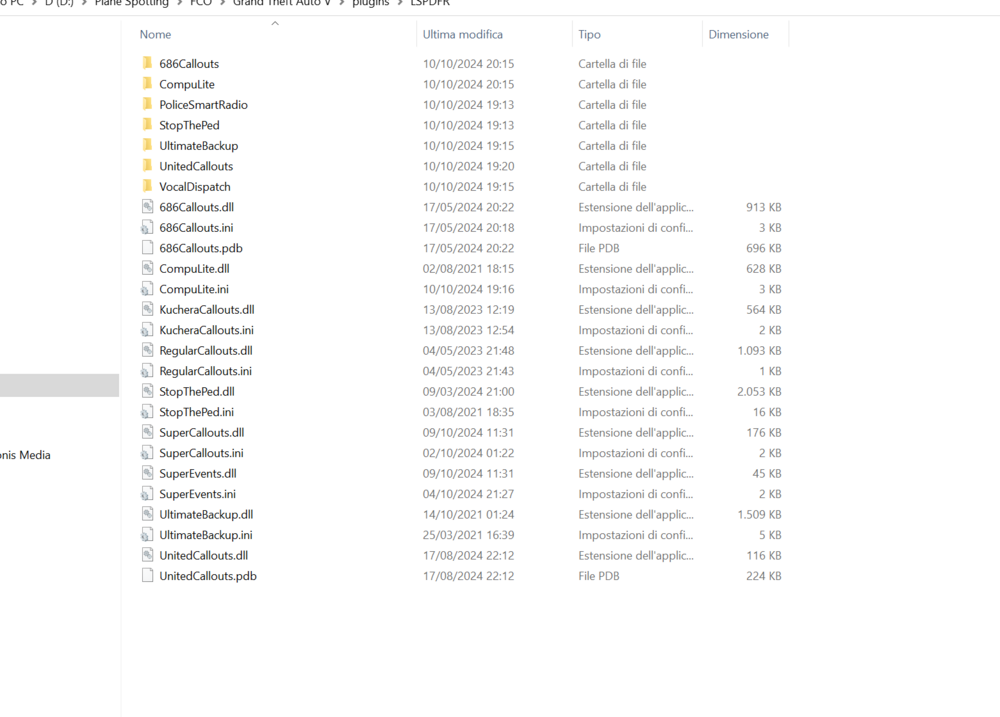
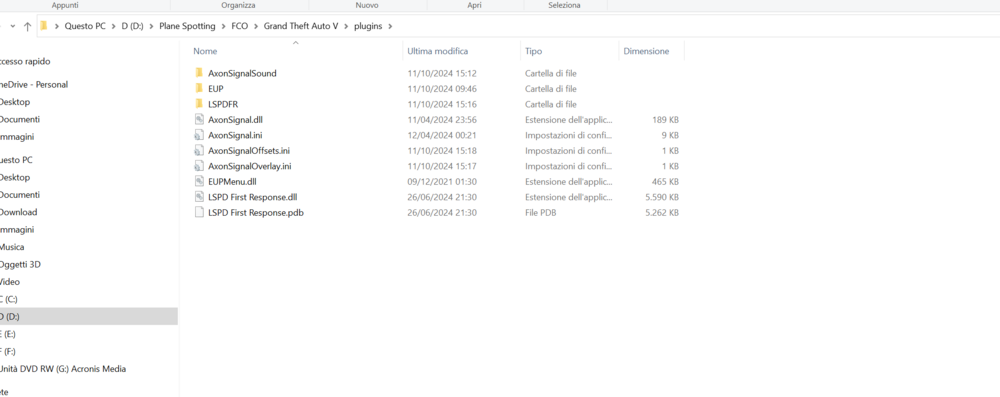
Have a new for the plugin folder and use for example now my plugins
-
LSPDFR Photo!
-

-
Hey, in this case the problem can be some plugin, try to remove WoutersCalloutsV, Section136Callouts, and reduce the content of the plugin! Using only the essential for the start, to check wich plugin make lspdfr crashing! If i have solved the problem vote me! Have Fun!
-
Hello, kindly go inside the LSPDFR folder Have Fun!Failed to retrieve D3D call in reasonable time, changing hooking mode kindly check the plugin that you have installed, kindly send me the screen of the plugin downloaded! Have Fun!Hello, how do you start your game in which sequence? You need only to run the Rage Plugin Hook.exe check the task manager during the start of the game! Have Fun!Hey, are you using Epic Games/Steam or Rockstar launcher? This type of problem can happen when u have a Epic Games version, you don't need to launch both (Gta5 and Rage plugin Hook) You need only to launch the Rage plugin Hook and it will start the game!




