



CodeRepo
Members
-
Joined
-
Last visited
Everything posted by CodeRepo
-
I believe XScanner is the reason for your crashing, try removing XScanner
-
Update your GTA 5 and reinstall the latest version of LSPDFR and Ragepluginhook, additionally try removing the ig callouts plugin
-
weird, compulite might not have been installed correctly
-
Did you install it correctly? make sure its installed correctly and you got the newest version if you have installed ragenativeui correctly, rename your mods folder to _mods and give that a try
-
Update your ragenativeui https://github.com/alexguirre/RAGENativeUI/releases
-
The plugin might not be supported by the newest versions of LSDPFR, i.e; the plugin is outdated
-
Rename mods folder to _mods
-
https://support.rockstargames.com/articles/8356059675539/Error-Code-134-when-launching-Grand-Theft-Auto-V-on-PC
-
https://steamcommunity.com/app/271590/discussions/0/1630790987599083790
-
-
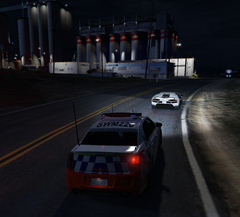
From the album: New South Wales Highway Patrol
-
Try launching gta story mode without ragepluginhook, once you've loaded in tab out and run ragepluginhook
-
Send your ragepluginhook.log file from your games folder
-
If you dont want callout interface then remove its files from your gta folder, some things you may install may be dependant on callout interface. No you shouldnt put the .zip file in your games folder, you need to extract it and place its files where they are meant to go, usually calloutinterfaceAPI.dll would go in the root directory and the rest should go in /plugins/lspdfr/
-
Thats the point of the mods folder, its so you can install your mods safely without corrupting your main files and having to reinstall gta, you have to create a new mods folder and start with your vehicles, weapons etc from scratch again
-
You're welcome my friend
-
Please load GTAV story mode without RAGEPluginHook. If that works, load RAGEPluginHook. Otherwise, try each step & test GTAV story mode. 1. Rename your mods folder to _mods. If this works, ensure you have https://www.gta5-mods.com/tools/heapadjuster https://www.gta5-mods.com/tools/packfile-limit-adjuster 2. Rename dinput8.dll to _dinput8.dll. If this works, one of your .asi files is at fault. Rename dinput8 back and remove all your .asi files. Gradually re-add them & load GTAV to determine which is at fault. 3. Rename vfs.dll to _vfs.dll. If this works, the issue lies with Lenny's Mod Loader. 4. Verify your game files Steam Epic Rockstar
-
I believe youre missing this; (Remember you need to be on duty to use it (f12))
-
youll have to redo your mods folder, so delete it and start from the start
-
Rename your mods folder to _mods and try again
-
update your gta by deleting gtav.exe and verifying your game files Update LSPDFR by reinstalling LSPDFR >
-
When you run the program, run it as administrator, and add your entire gta folder to anti virus exception list
-
Have a look at your other thread you've made, I've given you a solution
-
Hello, you're missing PyroCommon.dll in the base of your games folder. I've attached my pyrocommon.dll in an archive to this message PyroCommon.zip You're also missing CalloutinterfaceAPI.dll, so reinstall callout interface
-
Please try removing all your plugins and launching the game, if it launches successfully then you are using a plugin which is causing issues, install 1 plugin at a time and test, use `ReloadAllPlugins`in the F4 console so you dont have to relaunch the game to test the newly installed plugins


