
90720firephoto
Members
-
Joined
-
Last visited
Everything posted by 90720firephoto
-
 Agreed
 -
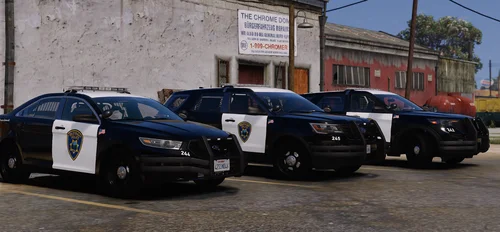
Just wanna let you know that the flashbacks on the Taurus don't stay on the tailgate when opened.
-
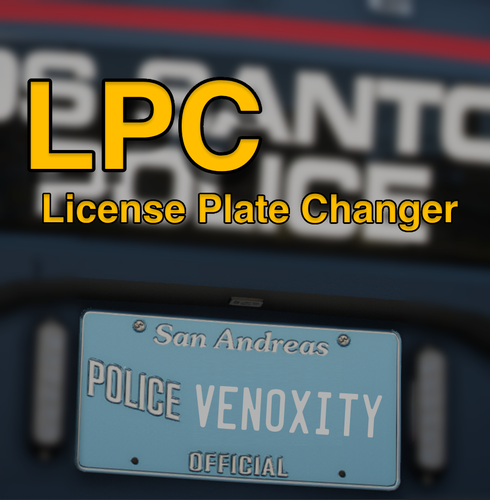 I understand this script is no longer maintained, but is there a chance this can be patched for the latest GTA update? The latest update broke a lot of scripts including this one.
- 56 comments
- 8 reviews
-
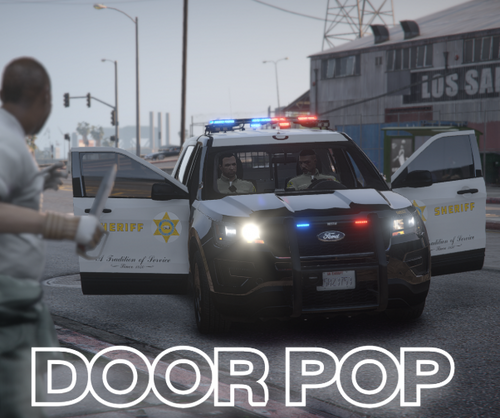 nice plugin and nice name haha🤝
 -
 May I ask where you got that scratched paint texture from on the liveries, or are they custom? Curious because it looks like they conform to the template of the vehicle.
 -
-
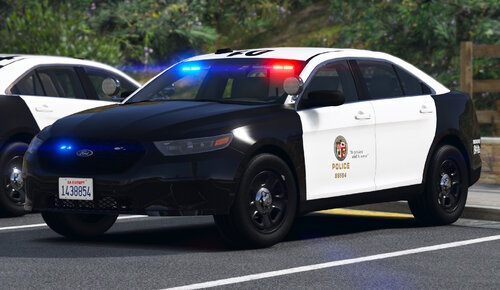 In a future update would it be possible to fix this issue with the taillights while the trunk is open on the 2014 Charger?
- 255 comments
- 75 reviews