


-Arknights--6067443.jpeg.6b5747b775d6f90b4ac0f2ac2f6c3ea2.jpeg)
-Arknights--7974524.jpeg.b69aeae889c23107ef0e3215f3343c77.jpeg)
Project S.A.K.I
Members
-
Joined
-
Last visited
Everything posted by Project S.A.K.I
-
The installation file is missing; no matter how many times I download the file is never there. sorry this file LSPD Pack Installer 2.0.0.oiv
-
No, I'm not, tho. The one I found says it's for an older version of GTA V
-
ya
-
My game ran perfectly fine before I installed LML. Now, the game won't load story mode. It boots up fine, but when I hit story mode, it loads for a few seconds, then crashes.
-
im still learning how to do things on the computer and trying to remember what auto installer i was using or if theres a better option
-
Hi ive been trying to learn and find a video on how to set this up properly but ive been unable to find any actually helpful videos so i came here for help. the game loads up fine and runs fine but when I enter a police station the game crashes and states this crash was not caused by lcpdfr and it jut loads for ever did I set it up wrong or is it broke. here's the way i download the files in order. 1. ScriptHookdotnet_v1.7.1.7b 2. IVASILoader 3. GTAIV_Complete_Edition_Fix_0_4 4. Liberty'sLegacyTrainer 2.0-100-2-0-1694434203 5.lcpdfr_1.1_legacy_edition
-
ok thanks
-
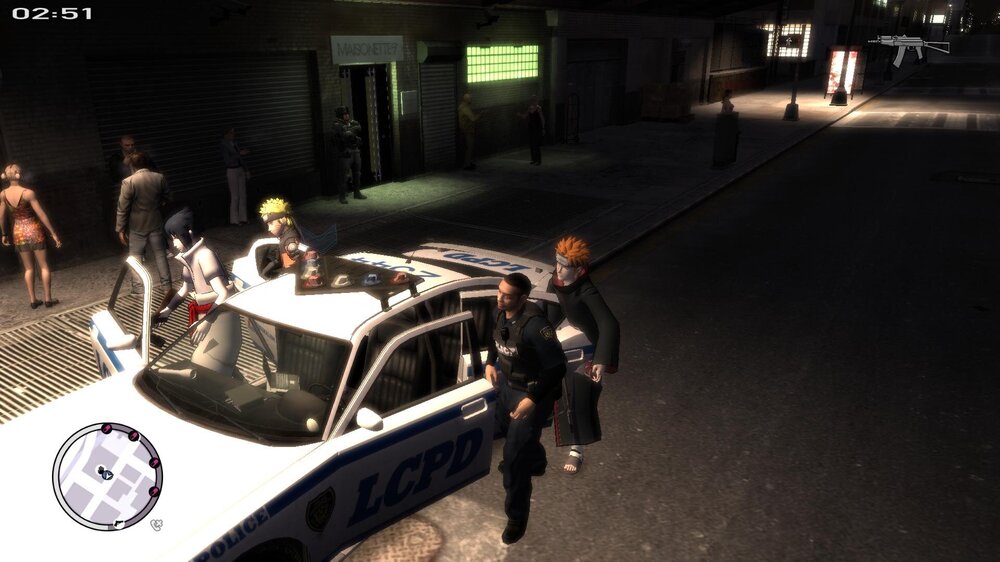
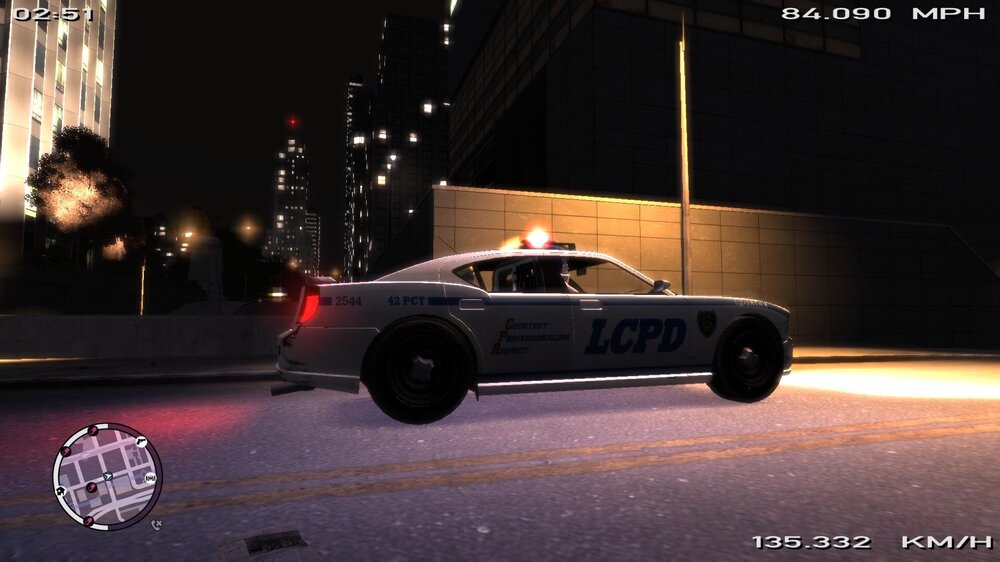
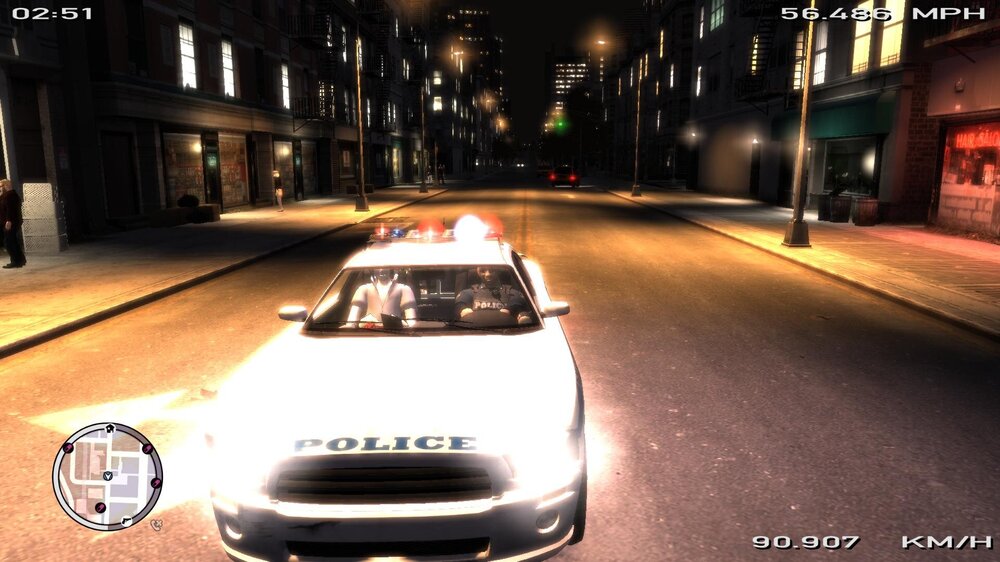
i downloaded the Bravado Buffalo Gen1 Cruiser Federal Signal Vision SLR
-
im trying to modify a vrhicle in openiv but im stuck there are three files fbi.wtf fbi.wtd fbi.bak where do .bak files go
-Arknights--7974524.thumb.jpeg.a5ce748a624a8225330695cd030e3c03.jpeg)


