



Chippy
Members
-
Joined
-
Last visited
Everything posted by Chippy
-
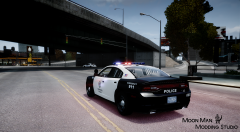
From the album: Moon Man Modding Studio
-
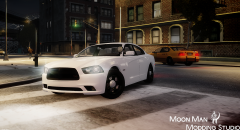 Not sure yet, feel free to give me ideas!
 -
From the album: Moon Man Modding Studio
-
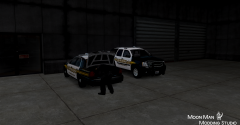
From the album: Moon Man Modding Studio
-
It would never happen.
-
![[WIP] LCDoJ Crown Victoria [EXCLUSIVE]](//s3-gallery.int-cdn.lcpdfrusercontent.com/gallery/album_1328/sml_gallery_3938_1328_216222.jpg) +1 There
+1 There -
 '?do=embed' frameborder='0' data-embedContent>>
 -
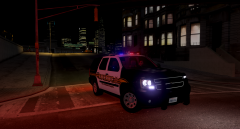
Its converted from Forza
-
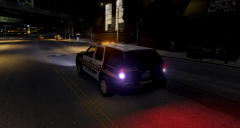
From the album: Chippy's WIPs
skin by bonehead see him create it! -
From the album: Chippy's WIPs
skin by bonehead see him create it! -
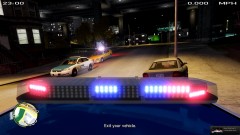 sweeeeet
 -
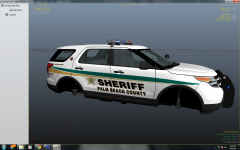 Looks sweet!
 -
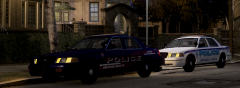
From the album: Chippy's WIPs
CVPI w/Code 3 X2100 [WIP] put together by Chippy Skins by bonehead -
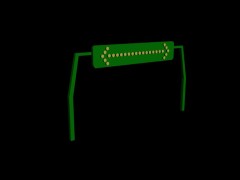 Excellent work as always!
 -
Also, when I unplug the keyboard and mouse, It goes to a screen where I have the option to "Start Windows normally" or "Launch startup repair" both end in failure Yep I made sure I bought the correct socket motherboard
-
The case is a Thermaltake V4 Black edition, and I bought all of this from Newegg. Everything is plugged in correctly, I dont know the exact specs. I have a corsair H55 cpu cooling system (I just bought), Geforce GTX 660Ti, Thermaltake TR2 600W, I cant remember the cpu but its AMD
-
Hello all, I recently ordered a new computer case and motherboard and long story short, It gets stuck on the motherboard splash screen. I've tried all things I can find to fix this, and..... nothing. I'm really hoping someone could help me out. Motherboard is an ASrock A55 ATX PRO3 FM1 Thanks for your time, -Chippy
-
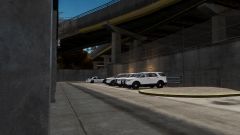
From the album: Chippy's WIPs
-
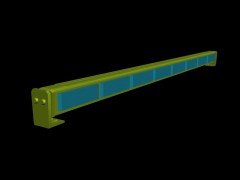 That looks sweet! Great work!
 -
 You got it! lol
 -
From the album: Moon Man Modding Studio
-
From the album: Moon Man Modding Studio
-
 They look awesome!
 -
-
![[WIP] Ford E-450 Ambulance](//s3-gallery.int-cdn.lcpdfrusercontent.com/gallery/album_1565/sml_gallery_65185_1565_78590.jpg) What a beaut so far, I would like to see a Federal Signal Legend on her
What a beaut so far, I would like to see a Federal Signal Legend on her


![[WIP] LCDoJ Crown Victoria [EXCLUSIVE]](http://s3-gallery.int-cdn.lcpdfrusercontent.com/gallery/album_1328/sml_gallery_3938_1328_216222.jpg)

![[WIP] Ford E-450 Ambulance](http://s3-gallery.int-cdn.lcpdfrusercontent.com/gallery/album_1565/sml_gallery_65185_1565_78590.jpg)