


Polle123
Members
-
Joined
-
Last visited
Everything posted by Polle123
-
.thumb.jpg.eb60d7ac22389b256d5f24c04810ee3b.jpg) alright! If thats your opinion so be it.
alright! If thats your opinion so be it. -
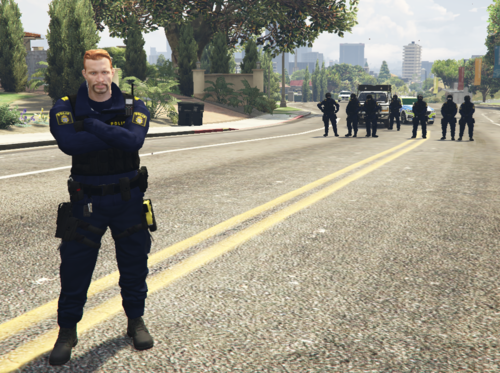 Note! This is not peds i am just showing that every police MP is replaced with peds! This is a replace file for MP Backup to Peds Backup! For example: MP backup characters is now Peds! Also Note! That this is and updated verion of 1.0.0 if you would like to see what have changed in this update join the discord and check under the updates tab! https://discord.gg/Wk2SjF58Qp ------------------------------------------------------------------------------------------------------------------------------------------------------------------------------------ To the file when you download this file it will give you 2 things in it 1 Read me file and then the Main file. Just follow the read and you will from now on only have PEDS as backup!
 -
This is not a department. This agency.xml file replaces "MP" backup to Peds. exampel: So the default mp characters that are in the game is now replaced as "s_m_y_cop_01" "s_m_y_sheriff_01" and so on no more "MP" as backup! its not clothes.!
-
IN THIS FILE YOU WILL FIND ONE FILE "agency.xml" you will simply just download then navigate to Grand Theft Auto V - lspdfr - data - then simply drag and drop the file and replace it. Done have fun! 💬 Now you dont have to see anymore of the MP characters!

.thumb.jpg.eb60d7ac22389b256d5f24c04810ee3b.jpg)
